Sep 17 2008
Contents
 
Introduction
Overview - RECOMMENDED READING FOR NEW ICM USERS
 Load PDB
 Move
 Selections
 Selection Levels
 What is Selected
 Workspace Panel
 Display
 representation
 Color
 Pocket
 Save Object
 Saving an ICM Project File
 Window Menu
 Tips
 Sequences and Alignments
 Protein Structure
 Cheminformatics
File Menu
Graphics Move Tools
Display Tab
Light Tab
Labels Tab
PDB Search Tab
Meshes Tab
View Menu
Selections
Tables
Local DB
Sequences
Bioinfo Menu
Tools Menu - Xray
Tools Menu - 3D Predict
Tools Menu - Analysis
Tools Menu - Superimpose
Homology and Modelling
Working with Chemistry Tools
Chemsitry Menu
Docking
Ligand Editor
Animations, Slides, & Documents
ActiveICM
Movie Making
iSee Wizard
Frequently Asked Questions
Tutorial - Graphical Display
Molecular Document
Tutorial - Working with PDB Protein Structures
Tutorial - Working with Sequence Alignments
Tutorial - Ligand Binding Pocket Analysis
Tutorial - Homology and Modeling Tools
Tutorial - Crystallographic Analysis Tools
Tutorial - Working with Chemical Tables
Tutorial - Working with the Molecular Editor
Tutorial - Chemical Searching
Tutorial - Docking and Virtual Ligand Screening
 
Index
PrevICM User's Guide
2.10 How to Display a Binding Pocket Surface
Next

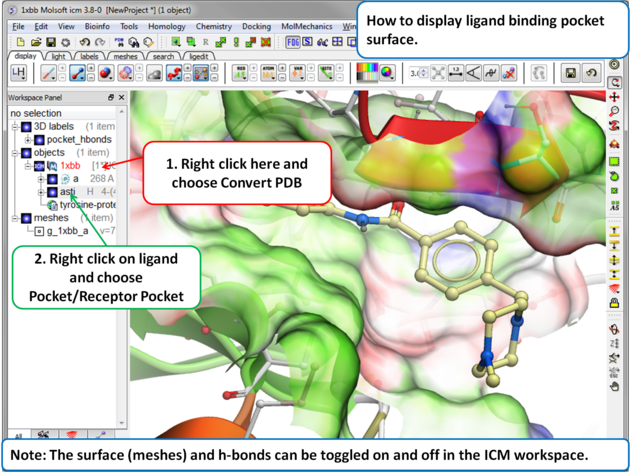
To display the surface of a small molecule ligand or peptide binding pocket:

  • Load the PDB of interest.
  • Convert PDB to ICM object. If you do not convert you will not get the properties of the pocket displayed on the surface.
  • Right click on the small molecule or peptide in the ICM Workspace and select Ligand Pocket.


Prev
Color
Home
Up
Next
Save Object

Copyright© 1989-2004, Molsoft,LLC - All Rights Reserved.
This document contains proprietary and confidential information of Molsoft, LLC.
The content of this document may not be disclosed to third parties, copied or duplicated in any form,
in whole or in part, without the prior written permission from Molsoft, LLC.