[ Introduction | Two Seqs | DNAtoProtein | Multiple | DragNDrop | Editor | Edit | Save/Print/Del | Add | Trees | Color | Shade/Box | View Options | Gaps | Search | Selections | Selections | Consensus ]
ICM provides a powerful sequence alignment editing tool.
You can customize your sequence alignments in a number of ways:
- Coloring according to a number of different consensus schemes.
- Customizing your own consensus tables.
- Shading areas of interest.
- Boxing areas of interest.
- Adding comments to an alignment.
- Saving an alignment as a high quality image for publication.
- Displaying and analyzing phylogenetic trees.
- Direct selection from the alignment to the 3D object.
9.2.1 Alignment Introduction |
To align two or more sequences you need to use the options in the 'Bioinfo' menu shown below.
To construct an alignment, two or more sequences need to be loaded into ICM. This can be done be done in one of the following ways:
- Constructing your own sequence see new sequence section.
- Extracting the sequence from a loaded PDB sequence by:
- File/Open sequence in FASTA seq format.
- File/Load SwissProt
- Right clicking on the object name in the workspace panel
- Select 'extract sequence' and the name of the extracted sequence will be
displayed in the terminal window.
Once the alignment has been constructed it will be displayed at the bottom of the graphical user interface (see below). If you cannot see the alignment try the Windows menu and select alignments.
9.2.2 Align Two Sequences |
To align two sequences:
- Select the 'Bioinfo' menu.
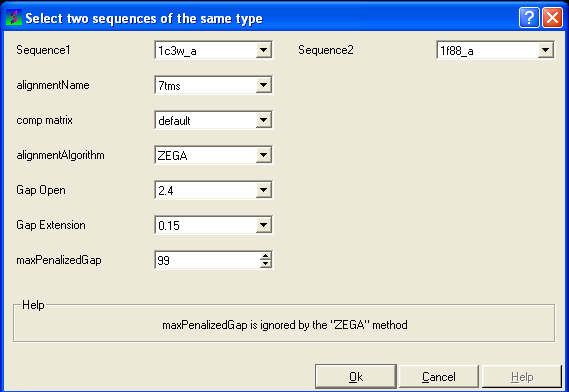
- Click on 'Align Two Sequences' and the following data entry box will be
displayed.
- Enter the name of your first sequence in the 'Sequence 1' data entry box.
- Enter the name of your second sequence in the 'Sequence 2' data entry box.
|
NOTE: Any sequences already loaded into ICM can be seen
by clicking on the down arrow next to the 'Sequence 1 and 2' data entry boxes. This
can save typing and trying to remember what you called your sequence.
|
- Enter a unique alignment name in the 'alignmentName' data entry box.
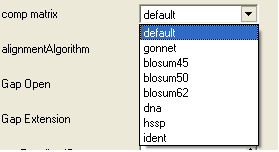
- Select a comparison matrix from the list shown below by clicking on the arrow next to the 'comp matrix' data entry box.
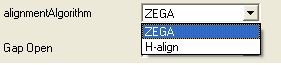
- Select the alignment algorithm you wish to use from the list shown below by clicking on the arrow next to the 'alignmentAlgorithm' data aentry box.
ZEGA - a Zero End-gap Global Alignment, that is a pairwise alignment method based on the Needleman and Wunsch algorithm modified to use zero gap end penalties. This type of alignment was first described by Michael Waterman, who called it the "fit" alignment. The paper of Abagyan and Batalov, 1997 describes the statistics of the structural significance of the alignment score and optimization of the alignment parameters for the best recognition of structurally related proteins.
H-Align - alignment method used in the Align and Score functions and find database command (as described in Batalov and Abagyan, 1999)
- Enter the values you wish to use for Gap Open, Gap Extension and the maximum penalized gap penalty.
Gap Open The absolute gap penalty is calculated as a product of gapOpen and the average diagonal element of the residue comparison table You may vary gapOpen between 1.8 and 2.8 to analyze dependence of your alignment on this parameter. Lower pairwise similarity may require somewhat lower gapOpen parameter. A value of 2.4 (gapExtension=0.15) was shown to be optimal for structural similarity recognition with the Gonnet et. al.) matrix, while a value of 2.0 was optimal for the Blosum50) matrix ( Abagyan and Batalov, 1997).
Gap Extension The absolute gap penalty is calculated as a product of gapExtension and the average diagonal element of the residue comparison table.
maxPenalizedGap The maximum penalized gap which is used for Gap Open and Extension
- Click OK and the alignment will be displayed in the alignment editor window at the bottom of the graphical user interface.
- Remember to save the project or write the alignment if you wish to keep the alignment for use at another time.
9.2.3 Align DNA to Protein |
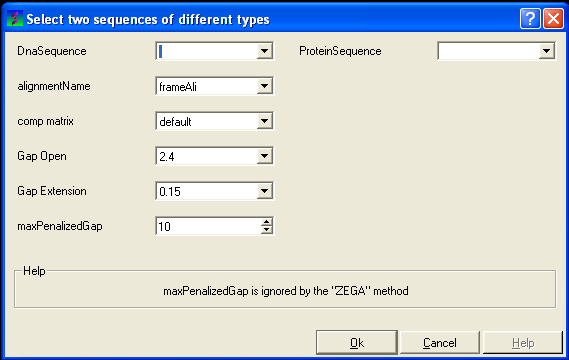
To align DNA to protein:
9.2.4 Align Multiple Sequences |
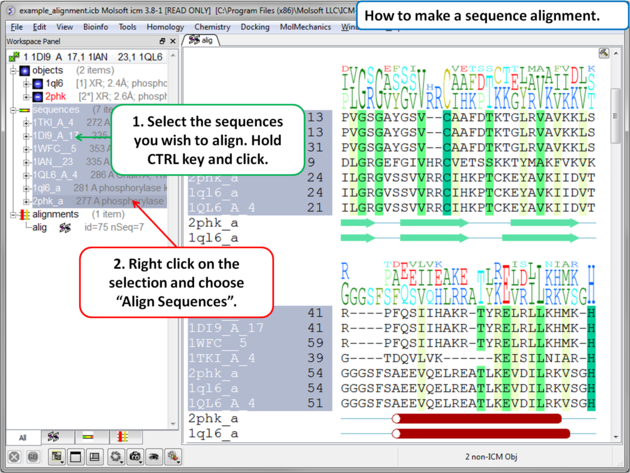
- Read into ICM the sequences you wish to align.
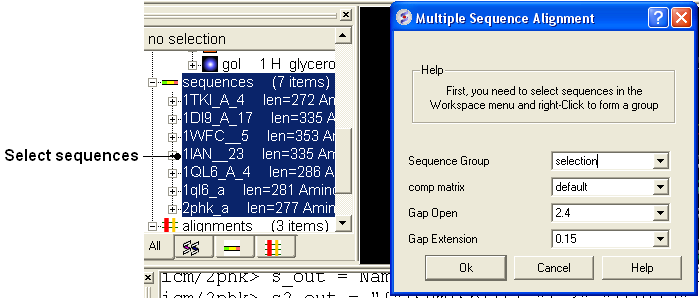
- Select the sequences you wish to align in the ICM workspace. A sequence can be selected by double clicking (highlighted blue in ICM workspace) - a range of
sequences in the ICM Worskpace can be selected by holding down the SHIFT button and double clicking. A non-contiguous selection can be made by holding down the
CTRL button and double clicking.
- Bioinfo/Multiple Sequence Alignment
- Enter the name of the sequence group. If you selected the sequences as described above then the name of the group is selection. Other named groups of
sequences can be made by right clicking on the sequence selection.
- Select the comparison matrix you would like to use.
- Enter Gap open and extension values.
Gap Open The absolute gap penalty is calculated as a product of gapOpen and the average diagonal element of the residue comparison table You may vary gapOpen between 1.8 and 2.8 to analyze dependence of your alignment on this parameter. Lower pairwise similarity may require somewhat lower gapOpen parameter. A value of 2.4 (gapExtension=0.15) was shown to be optimal for structural similarity recognition with the Gonnet et. al.) matrix, while a value of 2.0 was optimal for the Blosum50) matrix ( Abagyan and Batalov, 1997).
Gap Extension The absolute gap penalty is calculated as a product of gapExtension and the average diagonal element of the residue comparison table.
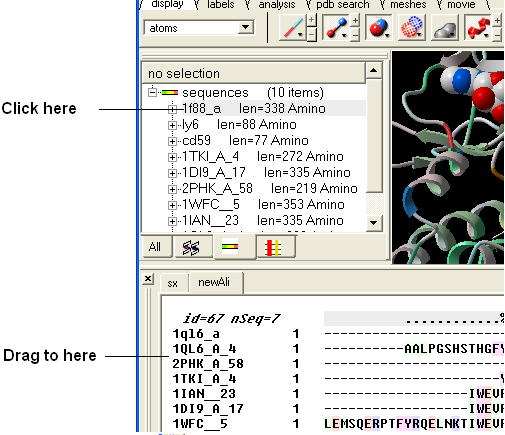
An easy way to add another sequence to an alignment is to drag and drop a loaded sequence from the ICM workspace
panel to the alignment window. The sequence automatically becomes part of the alignment.
The default position for the alignment editor is at the bottom of the graphical
user interface. If you have made an alignment and you cannot see the alignment
you can select Window/Alignments ( See Window Menu section of this manual ) and it will be displayed.
ICM has an easy to use editor for pairwise and multiple alignments.
ICM alignment editor is robust and always protects the integrity of your alignment by protecting you from making unintended changes in the alignment.
|
NOTE: To increase or decrease the size of the font in the Alignment Editor press the CTRL key and the '+' or '-' keys.
|
To edit an alignment one only needs four types of operations:
- select a block with one or several sequences to be moved (press Ctrl to add blocks). Important:
since you can only move the selection to the gapped space , the moving front of the selection must
be next to the gaps.
- (optional) create space on both sides around a vertical section of the alignment
- use the keyboard arrows to move the selected block with respect to the other sequences
- squeeze out the excessive gaps (an item in the alignment popup menu)
| OPERATION | KEYS
|
| set a vertical selection for ALL sequences in the alignment | Double-Click |
| add white space by hitting the Space bar | SpaceBar |
| remove white space | Backspace |
| select a sub-block for shifting | Drag Left-Mouse-Button |
| shift the selected block next to a gapped area | Right and Left Arrows |
9.2.8 Save, Print and Delete |
To save your alignment as a picture:
- Right click on the alignment and select the Save as image option.
- A data entry box as shown below will be displayed.
- Enter the filename you wish to call your alignment. We advice you to keep the .png file extensions.
- Select the drop down arrow next to the Style data entry box as shown below.
- Select the style you desire from full-width, as is, or 60.
Full-width:
Asis: As displayed in GUI.
60: 60 residues width
- Select the resolution for the image. We recomend 3.0.
- Select the browse button if you wish to save the picture in a directory other than the one you are running ICM in. If you decide to change directories
you will have to reenter the desired file name and click ok. The path of the file will then be entered in the save options data entry box.
- Click OK.
To save an alignment or tree:
- Right click on the alignment or tree and a menu will be displayed.
- Select the save as option.
To print an alignment or tree:
- Right click on the alignment or tree and a menu will be displayed.
- Select the print option.
To delete an alignment or tree:
- Right click on the alignment or tree and a menu will be displayed.
- Select the delete option.
To add a comment to an alignment:
- Click and drag over the region of the alignment under which you wish to add a comment. The selected region
will be highlighted in blue.
- Right click on the blue selected region and select 'Edit Comment' and either Line 1 ,2 or 3.
- Enter your comment text.
- Unselect by clicking away from the selection.
|
NOTE: The length of text added in a comment line can only be as long as the selected region in the alignment. However, there
are up to 3 comment lines which you can add.
|
To display and undisplay comments:
- Check and un-check the comment boxes in the view options section of the alignment editor shown below.
To edit a comment:
- Select the comment in the alignment window.
- Right click and a menu will be displayed as shown below.
- Select edit comment and the line number you wish to edit.
- Type the new comment.
9.2.10 Phylogenetic Trees |
|
NOTE: Before constructing a phylogenetic tree you need to align the sequences as described in the alignment section
|
To view a tree:
- Check the 'Tree' option in the alignment editor.
The tree will be displayed in the editor as shown below:
To display the tree alone without the alignment:
- Check the 'tree only' option in the alignment editor.
Tree functionality:
- the tree-section in the alignment is resizeable, just grab the rightmost end of the top ruler and drag it
- branch swapping : the sequences can be reordered by swapping the tree branches. Just do the following:
- Right-click on a tree-node to get a popup-menu
- swap the branches
- selecting a branch: double click on a tree-node to select the sequences belonging to it.
9.2.11 Coloring an Alignment. |
To color an alignment:
There are a number of ways to color an alignment in ICM. ICM offers a wide range of default coloring options
to choose from in the Alignment Editor.
- Click on the drop down arrow beside the "Color scheme" data entry box and a number of color schemes will be displayed.
- Select the color scheme.
|
NOTE: You can keep selecting from the list until you find an appropriate color scheme. See the ICM language manual for other
ways of coloring, definitions of color schemes and customizing the color. The colors are shaded from pale to bright where the brighter
color represents higher conservation at that point in a multiple alignment.
|
To see the alignment color key:
- Click the pencil icon next to the color scheme selection tools and a table as shown below will be displayed.
To color by strength of consensus:
To color your multiple alignment by the strength of consensus at each point in an alignment:
- Click and drag on the consensus strength button shown below:
9.2.12 Shading and Boxing an Alignment |
To shade an alignment:
- Click and drag over the region of the alignment you wish to shade. It should be highlighted in blue.
- Right click and a menu will be displayed as shown below.
- Select the Custom color... option
- Select your desired shading color.
To box an alignment
- Click and drag over the region of the alignment you wish to shade. It should be highlighted in blue.
- Right click and a menu will be displayed as shown below.
- Select the Draw box option.
- Select which color you wish to box your alignment in.
9.2.13 Alignment View Options |
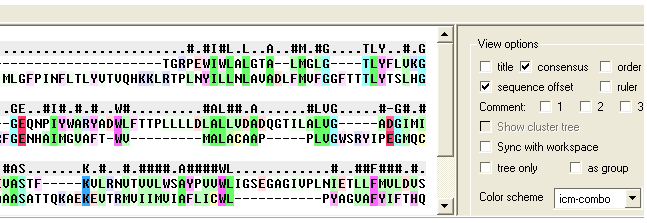
The alignment view options are located on the right hand side of the alignment editor.
To add or remove the alignment title:
- Check the title box in the view options.
To rename an alignment:
- Right click anywhere in the alignment or on the alignment tab and a menu will be displayed.
- Select the 'Rename' option.
- Type the new name for your alignment in the data entry box which becomes activated in the ICM workspace (See below).
To add or remove the alignment consensus display.
- Check the box labeled 'consensus' in the view options.
If you have a large alignment it may be convenient to show the number of each sequence
To number your alignment:
- Check the 'order' box in the view options.
Horizontal Scroll
To view the alignment in Horizontal scroll click on the "Horizontal scroll" button in the View Options panel in the Alignment tool bar.
To view the sequence offset number for each of your sequences in an alignment:
- Check the 'offset' box in the view options.
To view the sequence ruler:
- Check the 'ruler' box in the view options.
To view secondary structure.
If one of the sequences of the alignment is linked to a structure then you can display the secondary structure by:
- Check the "show secondary structure for" box.
The secondary structure will be displayed at the bottom of the alignment.
To make an alignment clearer you may wish to HIDE gap regions.
To hide all gap regions:
- Right click on the alignment and a menu as shown below will be displayed.
- Select the "Hide gaps" option.
The gaps in your alignment will be hidden according to the preference made in the alignment
tools panel shown below. Click on the drop down arrow in the "Hidden block format" data entry box.
Two parameters can be specified directly from the Tools Panel in
the alignment window:
- the "Hidden Block Format can use the following special symbols:
- %l number of hidden chars
- %L length of the hidden block
- %f hidden from
- %t hidden to
e.g. " %f .. %t "
or " %L "
- the "Hidden block width" which defines the total length of the
hidden section.
Some predefined hidden block formats are shown here:
length: displays the length of the gap
length: displays the length of the gap in <>.
clean0: displays no indication of a gap
clean1: displays grey panel in the gap position.
clean2: displays a wider grey panel in the gap position
|
NOTE: The width of the hidden panel can be changed as shown below.
|
If you have hidden all the gaps individual gaps (or blocks) can be displayed by:
- Right clicking on the gap and select "Show hidden block" option.
To show all gaps:
- Right click on the alignment away from a gap region and a menu will be displayed.
- Select the "Show gaps option.
9.2.15 Searching an Alignment |
If you have a large alignment and you wish to find a specific group of amino acids within that residue the you can
use the Alignment search tool.
- Right click on the alignment away from any hidden gaps and a menu will be displayed.
- Select the "Search in alignment option" and a data entry box as shown below will be displayed.
|
NOTE: Another way of searching an alignment is to use the alignment selection tools which are linked to the ICM workspace and 3D graphical window.
This is described in the section entitled Making Selections in Alignments.
|
9.2.16 Making Alignment Selections |
ICM has a very powerful alignment selection tool which enables sequences and structures to be interlinked with the 3D graphical window, the alignment window
and the ICM workspace.
9.2.17 Basic Alignment Selections |
To select a single column of an alignment:
To select parts of an alignment:
- Click and drag over the region you wish to select.
To select multiple discontinuous parts of an alignment:
- Click and drag whilst holding down the control key.
To enable the easy selection of all sequences in an alignment:
- Check the box labeled "Select by mouse in all sequences".
|
NOTE: All selections made in the alignment window are linked to the 3D graphics window and the ICM workspace if a structure is in the alignment.
|
9.2.18 Select by Consensus |
This is a very useful tool, for example, you may want to color the consrved regions of your structure in the 3D display windowa different color to the
rest of the structure. This tool allows you to select the conserved regions in the sequence alignment. Once the selection has been made it can be used
for a number of different ICM operations such as coloring and displaying secondary structure.
A selection can be made based on the alignment consensus. The buttons relating to this are in the alignment tool panel.
Before selecting by consensus you first need to define a consensus strength:
- Click and drag on the bar labelled "Strength" and select your desired percentage.
- Enter which elements of the consensus you wish to select separated by comma. Refer to the language manual
for definition of each consensus symbol.
- Click the Select button and your selection will be highlighted in blue in the alignment windown and ICM workspace and
as green crosses in the 3D graphical display window.
Once the selection has been made it can be used
for a number of different ICM operations such as coloring and displaying secondary structure.
To invert a selection:
- Click on the invert button.
To hide a selection.
|
NOTE: All selections made in the alignment window are linked to the 3D graphics window and the ICM workspace if a structure is in the alignment.
|
|