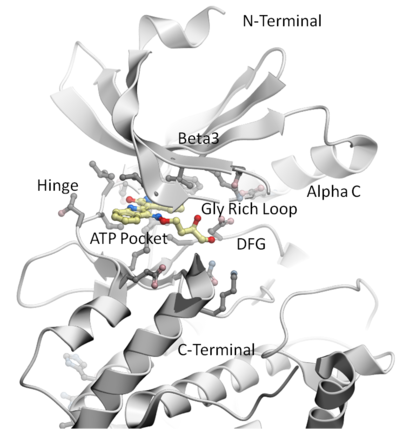
[ Molecule Representation and Color | Annotation | Labels | 2D and 3D Labels | Graphical Selections Tutorial | Basic Selections | Sequence Selections | Spherical Selection | Filter Selection | Residue Propagate | 3D Documents | Plots and Histograms | Histogram | Plot ]
22.1.1 Change Molecule Representation and Color |
This tutorial shows you how to:
- How to load a PDB structure into ICM.
- How to change the background color.
- How to display and undisplay a molecule.
- How to color ribbon representation.
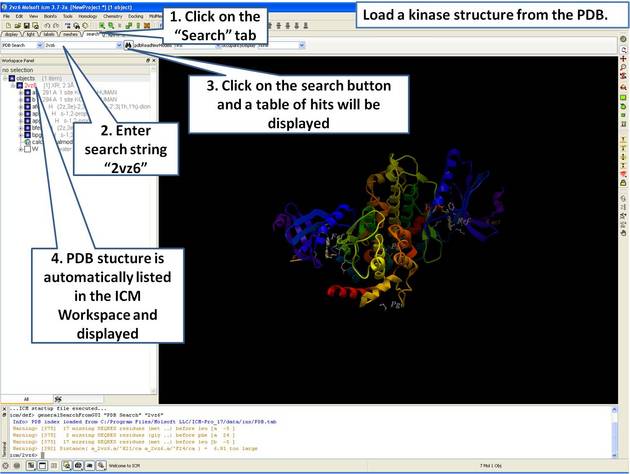
 |
| Step 1: Click on the search tab to load and display the PDB structure 2vz6 |
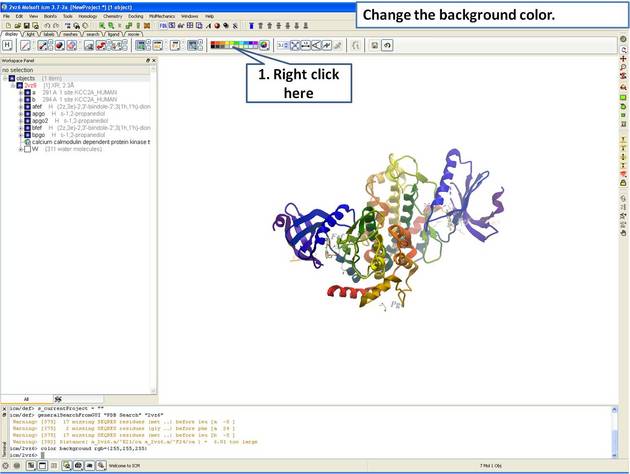
 |
| Step 2: Change the background color by right clicking on the color palette. |
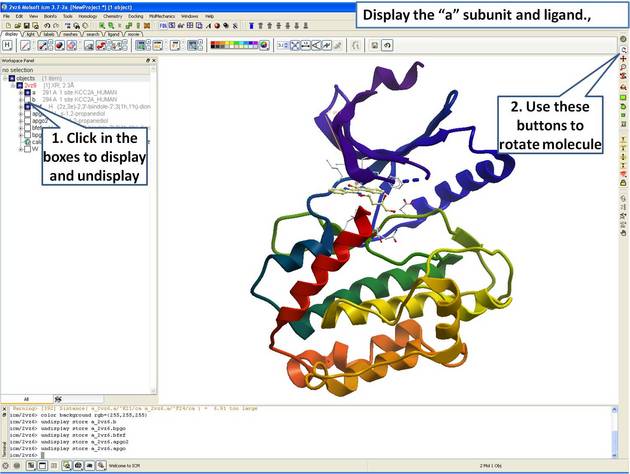
 |
| Step 3: Display the "a" subunit of the kinase. |
 |
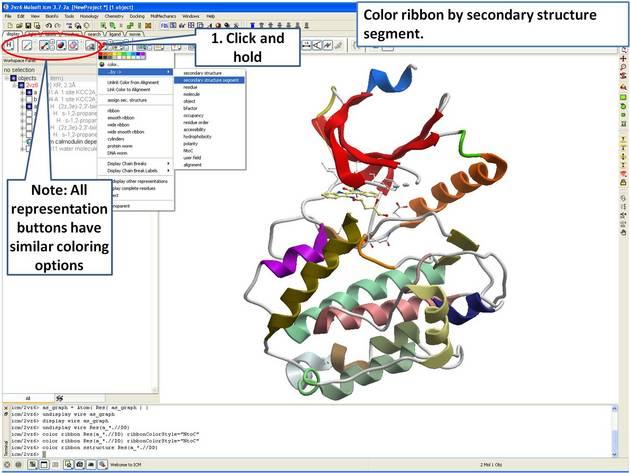
| Step 4: Use the options in the "Display Tab" to color the ribbon. |
 |
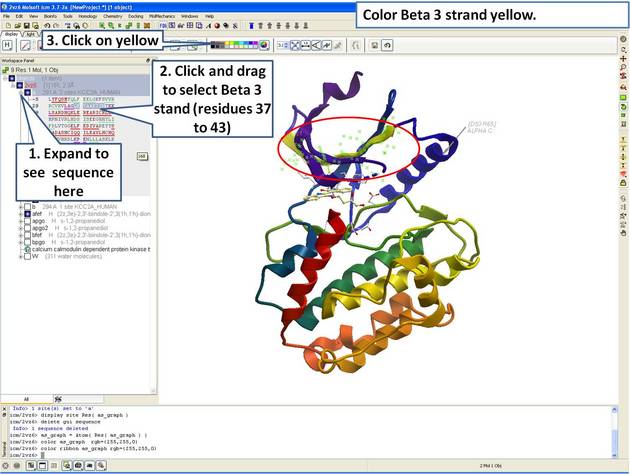
| Step 5: Select the beta 3 strand (residues 37:43) and color yellow. |
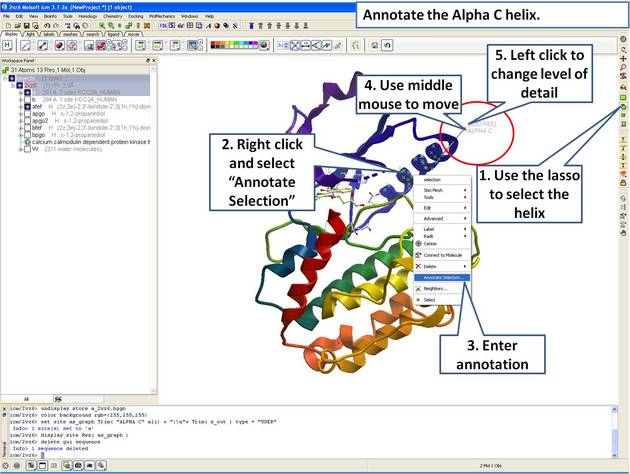
This tutorial shows you how to add user defined annotation to a particular region of a protein structure.
 |
| Step 6: Select the region you wish to annotate and right click on the selection for options. |
This tutorial is a continuation from the previous tutorials in this section and shows you how to:
- How to select individual residue types.
- How to propagate a selection from one atom to all.
- How to use the residue label button.
- How to make a spherical selection.
- How to label a residue selection.
 |
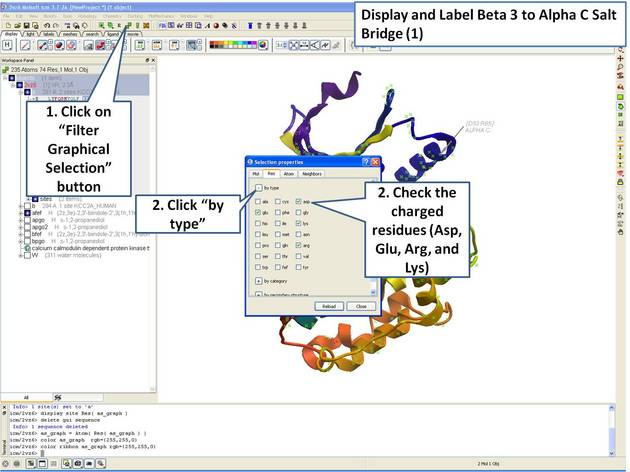
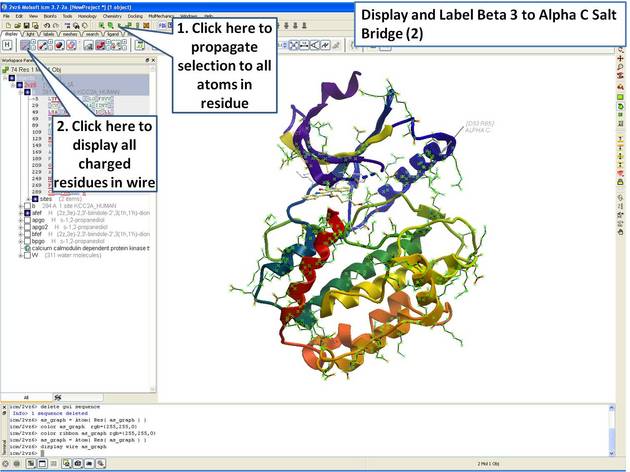
| Step 7: Use the "Filter Graphical Selection" button to select charged residues. |
 |
| Step 8: Propagate selection to all taoms to display all atoms of the side chain. |
 |
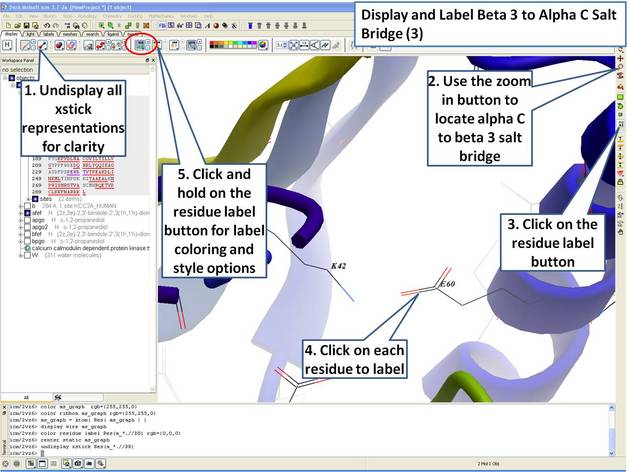
| Step 9: Locate the B3 to AlphaC salt bridge (K42- E60) and label using residue label button. Note: Once you have selected the two residues you can invert
selection (click on invert selection button) and then undisplay all the other charged residues. |
 |
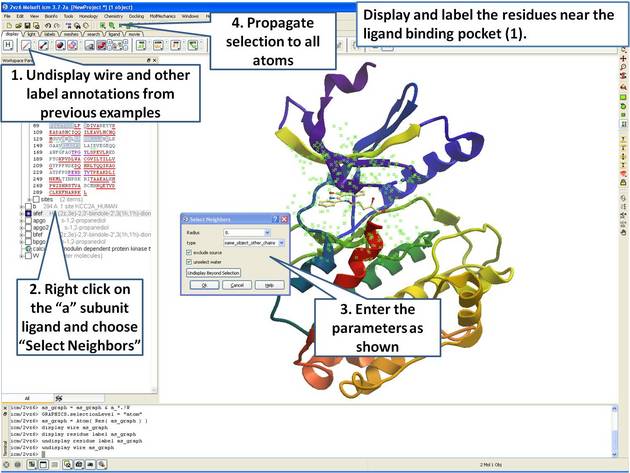
| Step 10: Select neighboring residues to the ligand. |
 |
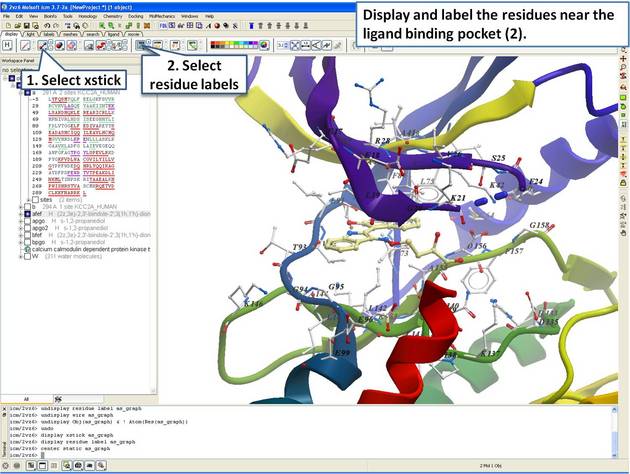
| Step 11: Display the residues and label them. |
This tutorial is a continuation from the previous tutorials in this section and shows you how to:
- Create and display a 2D label.
- Delete and move a 2D label.
- Create and display a 3D label.
- Delete and move a 3D label.
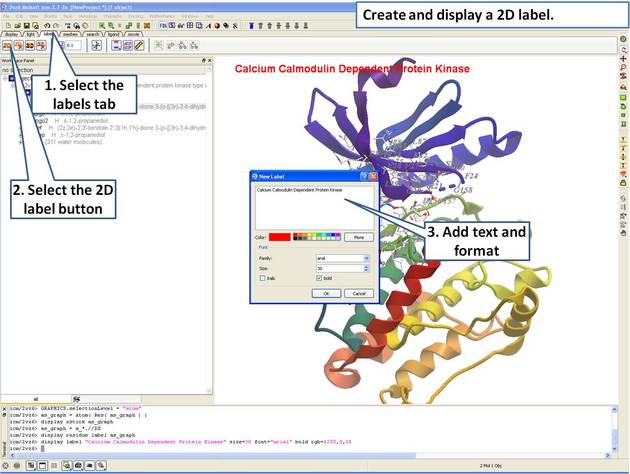
 |
| Step 12: Create a 2D label using the options in the "labels" tab. |
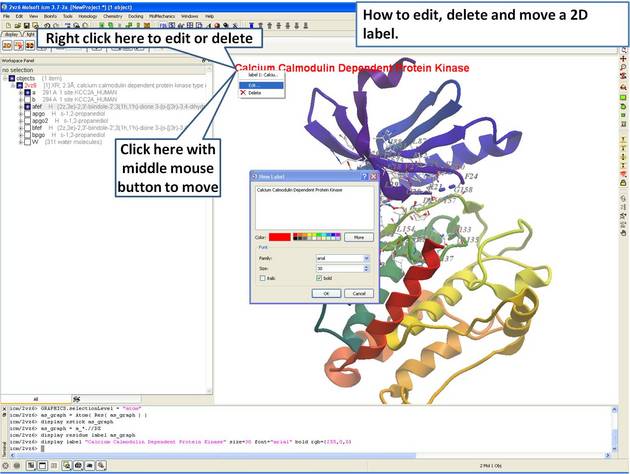
 |
| Step 13: Right click on the 2D label to edit or delete it. |
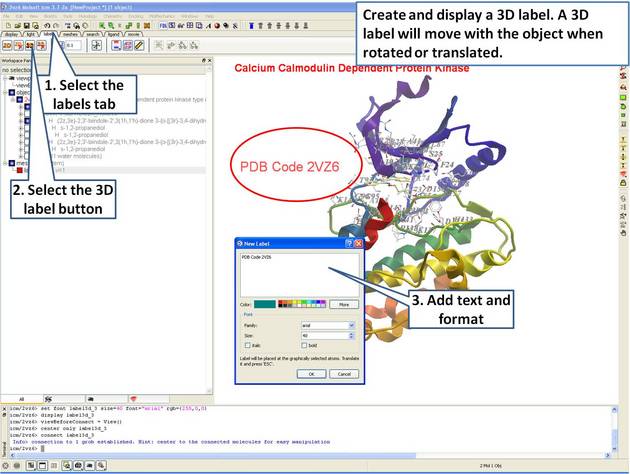
 |
| Step 14: Create a 3D label using the options in the "labels" tab. |
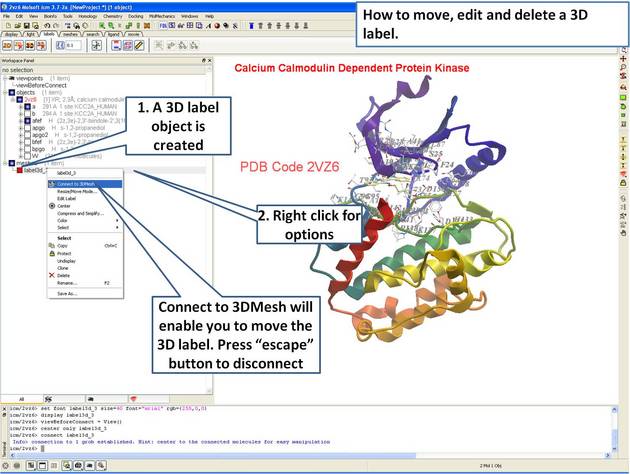
 |
| Step 15: Right click on the 3D label to edit or delete it. |
22.1.5 Graphical Selections Tutorial |
All buttons relating to graphical selections are shaded green. These buttons are shown here and are located at the top of the graphical user interface and along the side.
The File/New window is a great place to start learning how to use ICM as it provides a quick and easy way to generate new peptides, compounds, DNA/RNA, sequences and graphical objects.
The examples in this section will take you through the basics of making selections in the graphical user interface using objects generated from File/new.
22.1.6 Making Basic Selections |
- File/New - Select Peptide Tab and use the default peptide entries and select OK. A peptide as shown below will be displayed in ribbon format and the cysteine side-chains in xstick.
Now let us display the peptide in wire format and remove the ribbon and xstick representation
To do this:
- Select the whole object by double clicking on the name of the object "pep" in the ICM Workspace. When selected it will be highlighted in blue in the ICM Workspace and green crosses in the graphical display.
- Select the "Display Tab" and select the wire button to display wire representation. Select the ribbon button and xstick button to undisplay ribbon and xstick.
- Your peptide will still be selected. See below on how to remove selections.
Now we will display different parts of the peptide in different representations.
- Right click and drag over a region of the peptide you would like to change.
- Use the display panel to select the represenation you would like to display.
Other ways of making selections.
22.1.7 Making Sequence Selections in the ICM Workspace |
- File/New - Select Peptide Tab and use the default peptide entries and select OK. A peptide as shown below will be displayed in ribbon format.
Selections can be made on the sequence of the peptide. This can be done by expanding the sequence display in the ICM Workspace and clicking and dragging on the sequence as shown below.
Non-contiguous selections can be made by clicking/dragging over the sequence whilst holding down the Ctrl key.
22.1.8 Making a Spherical Selection. |
In this example we will select the residues surrounding a ligand.
- PDB Search tab (PDB code 1MVC)
- Right click on the ligand bm6 in the ICM Workspace.
- Select the Neighbors option
- In the "Select Neighbors For" box leave as Graphical Selection (1 mol)
- Enter Radius 5.
- Enter type same_object_other_chains
- Choose exclude source and unselect water.
- You will see green crosses surrounding the ligand binding pocket.
22.1.9 Filtering a Selection. |
In this example we will filter the selection made in the previous example and select only His, Asn, Gln and Pro residues surrounding the ligand.
- Make a spherical selection surrounding the ligand in PDB structure *1MVC (See earlier example).
- Click on the Filter graphical selection button.
- Click on the Res tab
- Select His, Asn, Gln and Pro residues.
|
NOTE: Only amino acid residues in the current selection will be available in the Filter. |
Display the selected residues in wire format.
- Change the selection from Atom to Residue.
- Select the wire representation button in the display tab.
22.1.10 Propogating a selection to all atoms in a residue. |
Sometimes it is useful to propagate a selection to all atoms in a residue. For example when selecting the residues surrounding a ligand within a certain angstrom radius
the selection will only pick up certain atoms of a residue. The button shown below can be used to propagate the selection to all atoms in a residue.
22.1.11 Creating Fully Interactive Slides for PowerPoint and the Web Tutorial |
In this tutorial you will learn how to:
- How to make a fully interactive 3D slide.
- How to include HTML text
- How to link HTML text to 3D slides.
See the ActiveICM How To Guide for instructions on how to view the fully interactive slides on the web and PowerPoint.
 |
| Step 1: Load the structure(s) you wish to include in a slide(s). |
 |
| Step 2: You need to convert a PDB file to an ICM object if you wish to display surfaces colored by binding properties. |
 |
| Step 3: Prepare the display for the slide. |
 |
| Step 4: Make a slide by clicking on the camera button. |
 |
| Step 5: Make another slide, in this example we color the glycine rich loop. |
 |
| Step 6: Display the pocket surface. |
 |
| Step 7: Prepare HTML text. |
 |
| Step 8: Right click in the HTML panel for editing options. |
 |
| Step 9: Type text in the HTML editor. |
 |
| Step 10: Add a link from the text to a slide. |
See the ActiveICM How To Guide for instructions on how to view in the web and PowerPoint.
22.1.12 How to Generate Plots and Histograms |
22.1.13 How to make a histogram. |
22.1.14 How to make an X-Y scatter plot. |
|