| Available in the following product(s): ICM-Browser | ICM-Browser-Pro | ICM-Pro |
You can jump to the slide you wish to edit by following the slide navigation instructions.
Edit slide contents: To edit the content of a slide the procedure is to add a new slide and then delete the old one or use the "overwrite current slide" option as shown below:
- Click and hold down on the camera button.
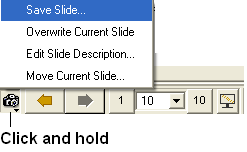
To edit a slide description.
- Click and hold down on the camera button and select the option "Edit Slide Description".
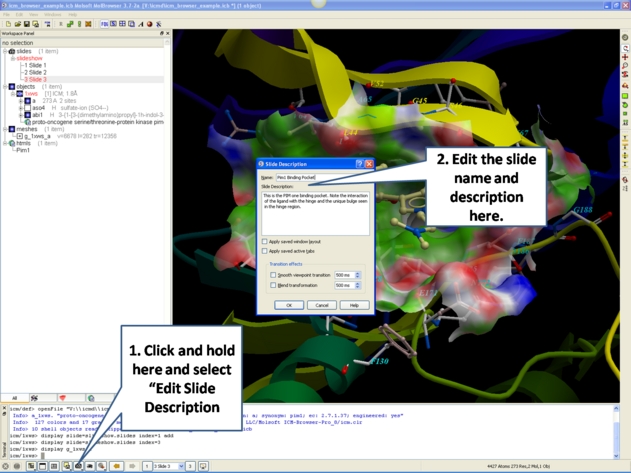
- Enter the name of the slide
- Enter a description of the slide.
- If you wish to keep the current window layout or active tabs check the boxes provided
To delete a slide:
- Right click on the name of the slide in the ICM Workspace and select Delete.
To change the name of a slide
- Right click on the name of the slide in the ICM Workspace and select Edit Slide.
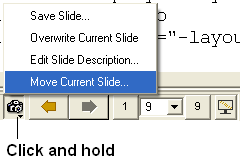
To change the slide's position in the slideshow use the Move Current Slide option and select the new position from the list.
- Click and hold on the "make slide button".
- Select Move Current Slide.
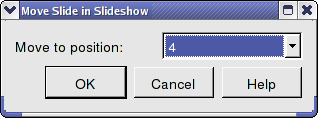
- Select the position in the slide show where you want to move the slide to.
Co-display more than one slide
- Right click on the name of the slide in the ICM Workspace you wish to co-display with the curently displayed slide.
- Select the option co-display slide.