[ Mesh Clipping ]
| Available in the following product(s): ICM-Browser | ICM-Browser-Pro | ICM-Pro |
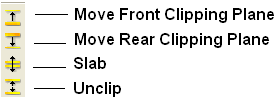
The clipping tools allow you to adjust the frames of the ICM window, changing the clipping planes.
Clipping planes can also be moved without switching to the clipping tool, if you click the right hand margin of the graphics window:
- The top section of the right 5% margin of the graphics window: moves the back clipping plane
- The middle section of the right 5% margin of the graphics window: moves the slab (both clipping planes)
- The bottom section of the right 5% margin of the graphics window: moves the front clipping plane
In order to move the front or rear clipping planes of your screen:
- Click on the Move front clipping plane or Move rear clipping plane icons on the toolbar.
- Click and drag the respective plane frontward or backward, depending on how you wish to clip it.
You can also move the slab of viewing window, keeping the distance between the front and back clipping planes. In order to adjust the area of the structure where your viewing window is located:
- Click on the Slab icon on the toolbar.
- Click and drag the slab frontward or backward, depending on the desired area of the structure you wish to see.
If you have made changes to the clipping planes which you do not wish to keep or you wish to automatically fit your entire structure within the clipping planes:
- Click on the Unclip icon on the toolbar. This will automatically set the clipping planes to fit your object.
Clipping tools can be used to adjust the frames of the mesh independently of other objects. This is described here.