[ Fog | Shadows | Sketch Accents | Elegant Sketch | Occlusion Shading | Perspective | Animate View ]
| Available in the following product(s): ICM-Browser | ICM-Browser-Pro | ICM-Pro |
All the visual effects tools can be accessed by the View Menu or click on the corresponding button in the View Tools panel shown below.
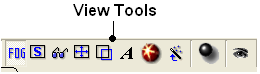
Fog Toggle(Ctrl + D) : this feature creates a fog-like environment for your object, so that the part of your structure that is closer appears clear and the distant parts are faded as if they are in fog. The clipping planes control the point at which the fog begins.
- View/Fog
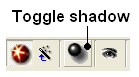
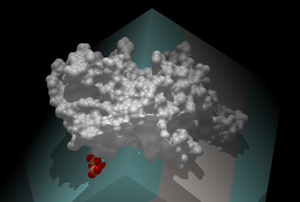
- View/Shadows
OR
-
select the shadow button shown below.
- View/Sketch Accents
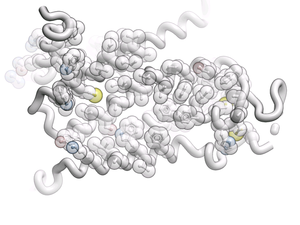
- Display Tab
- Click and hold Hydrogen button
- Select Elegant Ribbon+Sketch
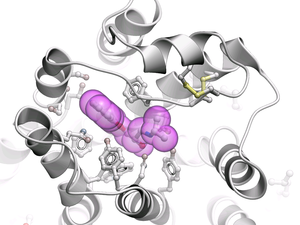
To add occlusion shading:
- Right click on the mesh in the ICM Workspace and select Occlusion Shading. The occlusion shading value can also be changed before generating the mesh in the meshes tab.
- Enter a depth value - default is 0.8. Higher values will generate a more dramatic shading.
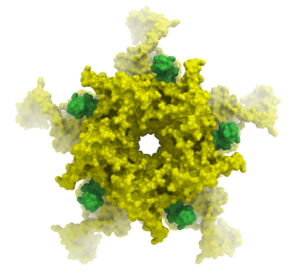
Toggle perspective Ctrl_P this will add perspective to your structure, enhancing depth in the graphical display.
- View/Perspective
[ Make | Change | Interrupt Animation | Save ]
Learn how to build fully interactive and interruptable animations.

To quickly produce an ICM Molecular Animation:
- Click and hold down the "Begin rocking/rotation" button shown in the picture below.
- Choose from the following options - X-Rock, Y-Rock, Xy-Rock, xY-Rock, X-Rotate, and Y-Rotate.
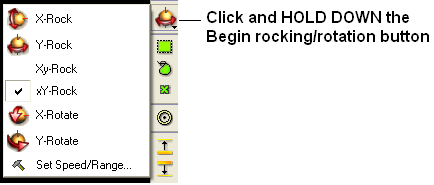
| NOTE: Default rocking representation can be changed in the File/Preferences/Gui menu. |
To change the speed, range and cycle length of the animation:
- Click and hold down the "Begin rocking/rotation" button shown in the picture above.
- Choose the set speed range option and change the speed and range using the drag bars. Any change will appear in the graphical display behind this box.
- If desired you can change the number of cycles of the animation. This is an ideal tool for screen-shot movie making.
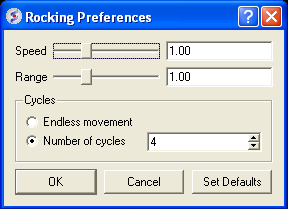
| NOTE: There is a return to default button in the Rocking Preferences dialog box shown above and defaut values can be changed in File/Preferences/Gui. |
| NOTE: Default rocking speed can be changed in the File/Preferences/Gui menu. |
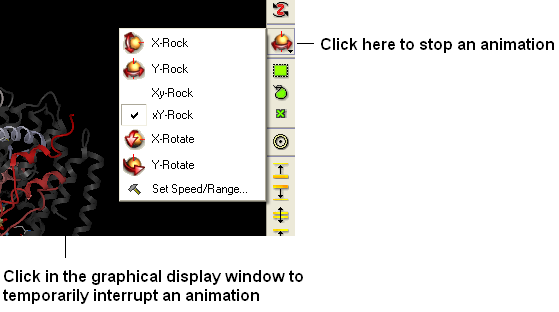
An ICM Animation or Transition is fully interactive and is interrupted by a single click of the mouse.
To stop or change an animation or transition:
- Click the "Begin rocking/rotation" button shown in the picture below.
To temporarily halt an animation or transition:
- Click in the graphical display. Once you release the mouse button the animation will start again.
| NOTE: If you click on the graphical display during an animation the animation will be interrupted. Whilst clicking and holding the mouse button other operations can be performed such as zooming and selections. |
An animation can be saved in an ICM project:
Or
as a slide.