[ Tether | Distance Restraint | Docking Templates ]
| Available in the following product(s): ICM-Pro | ICM-VLS | ICM-Chemist-Pro |
To impose tethers to selected atoms of the ligand before redocking.
- Setup the ligand and receptor.
- Click on the edit tools panel button.
- Click on the impose positional restraints button.
- Select the atoms you wish to tether in the ligand.
- A table listing the tethers will be displayed and red crosses through the atom indicates a tether.
- Click on the re-dock button and the atoms selected will remain tethered in place.
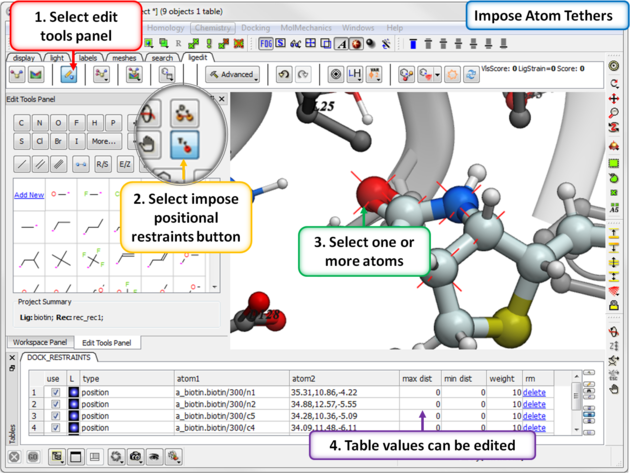
About the table: The tethers can be edited and deleted using the table. Double click on a value in the table to edit it.
- Use Check "use" to use the tether in docking.
- L Toggle the tether display on or off.
- Type Type of tether "position" indicates a positional restraint (tether).
- Atom1 ICM selection language for the tethered atom. Atom 1 can also be SMARTS expression which define the atom (for both distance and position) The matched atom should be marked with '*'. For example oxygen in the double bonded to the 5-member ring in biotin can be defined as: NC(=[O*])N
- Atom2 xyz position (3 comma separated numbers)
- max dist Sets the maximum distance for the tether.
- min dist Sets the minimum distance for the tether.
- weight the overall weighting factor for the tether penalty term.
- rm Delete the tether.
- err Deviation from the position after docking.
There are three types of distance restraint you can make:
- lig - static rec : fixed side-chain (weighted tether)
- lig - flex rec : flexible side-chain (drestraint)
- lig - lig : drestrains
To impose distance restraints before redocking.
- Setup the ligand and receptor.
- Click on the edit tools panel button.
- Click on the distance restraint button.
- Select two atoms to form the distance restraint. The distance restraint can be between two atoms in a ligand or between the ligand and receptor
- A table detailing the distance restrints will be displayed and red crosses through the atom indicates a tether.
- Click on the re-dock button and the atoms selected will remain tethered in place.
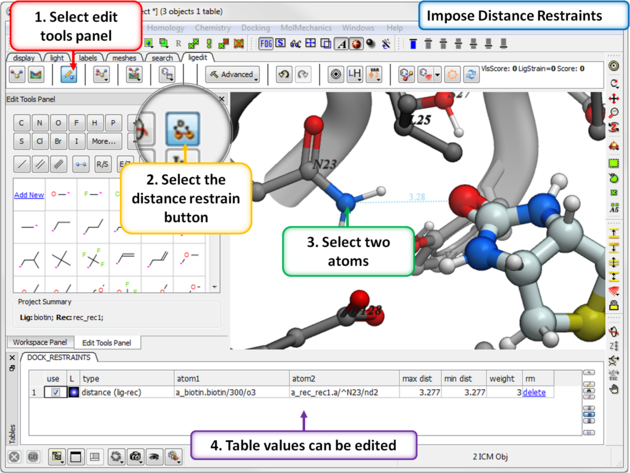
About the table: The distance restraints can be edited and deleted using the table. Double click on a value in the table to edit it.
- Use Check "use" to use the distance restraint in docking.
- L Toggle the distance restraint display on or off.
- Type Type of restraint. There are three types of distance restraint
- lig - static rec : fixed side-chain (weighted tether)
- lig - flex rec : flexible side-chain (drestraint)
- lig - lig : (drestraint)
- Atom1 ICM selection language for the first atom in the distance restraint.
- Atom2 ICM selection language for the second atom in the distance restraint.
- max dist Sets the maximum distance for the restraint.
- min dist Sets the minimum distance for the restraint.
- weight the overall weighting factor for the distance restraint penalty term.
- rm Delete the distance restraint.
- err Deviation from the position after docking.
| Note: The area within min-max distance is zero (flat-bottomed). With a weight of 1. you will have fair coverage of conformations with minor violations, going up to 5 or 10 will pretty much force the system to always stay there, below 1. you will only have a sort of weak steering force. |
You can use either substructure or Atomic Property Field Templates for docking.
First prepare the template:
- The template needs to be in the same coordinate frame as the region you are docking to. The easiest way to prepare the template is to right click on a ligand in the pocket in the ICM workspace and choose "copy to another object". Rename as template and then right click on it and choose Edit/Edit compound and delete the atoms you do not want in the template.
- Setup the ligand and receptor.
- File/Open a 3D template structure and place in the pocket.
- Click on the Edit Tools panel button.
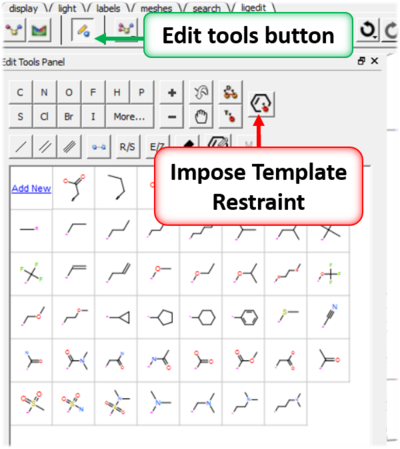
- Click on the Impose Template Restraint button.
- Select the template object from the drop down menu and choose whether you wish to impose substructure or 3D pharmacophore APF template.
- A table will be displayed called DOCK_RESTRAINTS where you can turn the template on or off.