| Available in the following product(s): ICM-Pro | ICM-VLS | |
To perform constrained docking to a template structure you need to position the template in the desired position in the receptor - this can be done by docking or using the connect option if the template is not already in the correct position.
Some considerations for the template:
- The template needs to be an ICM object. The template object can contain more than one chemical if needed. You can merge multiple chemicals in the ICM workspace using drag and drop as shown here.
- The template needs to be in the same coordinate frame as the region you are docking to. The easiest way to prepare the template is to right click on a ligand in the pocket in the ICM workspace and choose "copy to another object". Rename as template and then right click on it and choose Edit/Edit compound and delete the atoms you do not want in the template.
- Make sure the template contains only the atoms you wish to match - a template can be edited by right clicking on it in the ICM Workspace and select Edit/ Edit Compound.
- It is also important to delete hydrogen atoms on the template particularly in places where substituent groups will be placed.
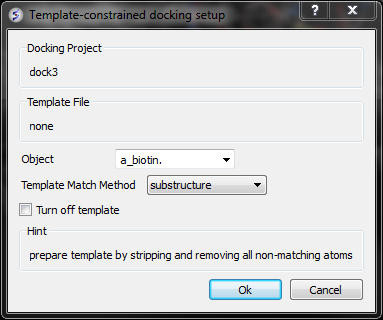
- Setup the docking project as described in the Small Molecule Docking chapter.
- Before starting the docking select Docking/Template
- Read in the ICM object that you wish to use as a template. Select the template object name in the Object data entry box using the drop down button.
- Select the template match method.
Match Methods include:
- Match by atom name, substructure - option requires that template is an exact substructure of input ligands. If it does not match then no tethers will be imposed for that particular ligand.
- The fuzzy option will find maximum common substructure between template and input ligands - the matched atoms will be tethered during the simulation.
- APF option will build APF maps of the template and use them in simulation and addition to receptor maps. This options does not require common substructure between template and input ligands.
- Click OK
- Set the docking job running - Docking/Run Docking Batch
How to weight the strength of the Template using APF fields.
The strength of the Atomic Property Field (APF) can be regulated by adjusting the occupancy values of the template atoms. This allows you to fine-tune the influence of the entire template, specific molecules, or even individual atoms.
By default, occupancy is set to 1.0. Lowering this value reduces the atom's contribution to the field; setting it to 0.0 effectively ignores the atom during APF generation.
Setting Occupancy Using the GUI
- Load the template file (e.g.,
DOCKPROJNAME_tmplt.ob). - Select the molecule or individual atoms in the 3D window.
- Right-click on the selection.
- Select Edit > Occupancy from the pop-up menu.
- Enter the desired value and click OK.
- Save the object back to the docking directory.
Using the Command Line
You can use the set occupancy command for faster or more precise adjustments.
set occupancy a_// 0.1
The command above sets all occupancies in the current object to 0.1 (10% strength). You can modify the atom selection (a_//) and the value as needed.
Read more about set occupancy here.