[ Read and Display | Chemical Spreadsheet Template | Display | Calculate Chemical Properties | Sort | Copy-Paste | Add New Data to Spreadsheet | Hide | SDF | Excel | Print | Filter | Find/Replace | Mark Row | Hyperlink | Copy chemical | Edit | Standardize | Properties | InChi | Duplicates | Compare | Merge | Convert | Copy | Edit | Color Column | Chemical View | Side-by-Side | Zoom and Translate | 3D Browse | Find and Replace | Fragments | Rotate Chemical | Color Chemical ]
| Available in the following product(s): ICM-Chemist | ICM-Chemist-Pro | ICM-VLS |
When an sdf file is read into ICM it is displayed as a chemical spreadsheet. Many of the operations you can perform on chemical spreadsheets (Molecular Tables) are described in the table section of this manual. Some useful chemical-only options are described in this section.
An example of an ICM molecular table:
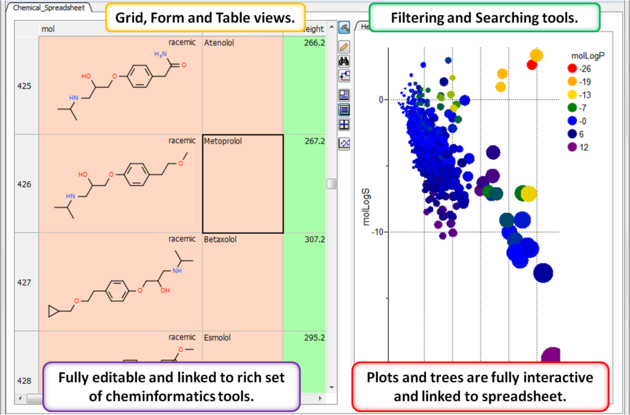
When an sdf file is read (File/Open SDF) into ICM it is displayed as a chemical spreadsheet.
| Video |
To create a chemical spreadsheet table template:
- Chemistry/Create Empty Chemical Table
- Enter a name for the table.
- Choose whether you wish to add an ICM column and the prefix.
- Enter the number of empty roads you would like to insert.
- Click Next to select property columns.
- You can add plots and histograms to the template.
You can apply the template to new data by:
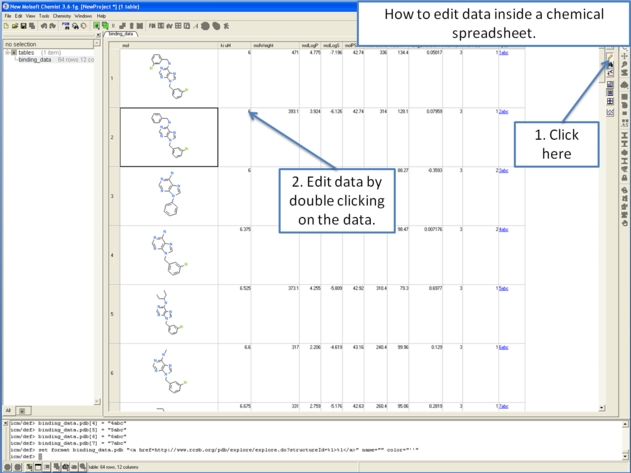
- Cut and paste or append the new data into the template or double click in a cell and edit the chemical. The chemical properties will be automatically calculated and the plots/histograms populated with data.
You can save a template by:
- Right click on the template listed in the ICM workspace (left hand side).
- Select Save As.. and choose Save as type ICM binary .icb
You can open a template by:
- File/Open file type ICM Binary .icb.
| Video |
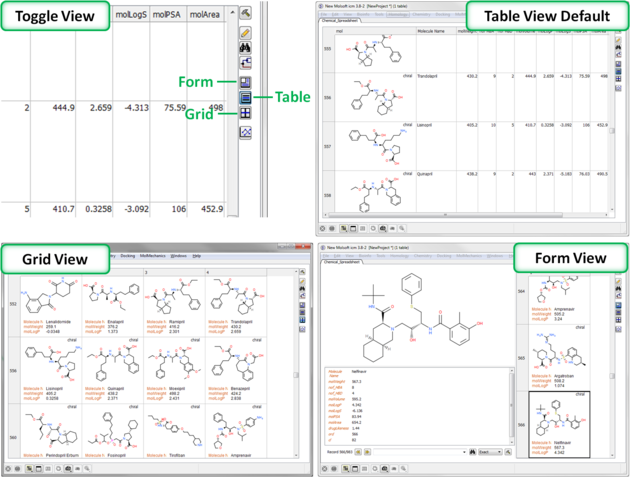
There are three built-in table views.
- Table View (Default)
- Grid View - select the columns you wish to display in a grid.
- Form View
You can toggle between each view using the buttons on the right hand side of the table shown below.
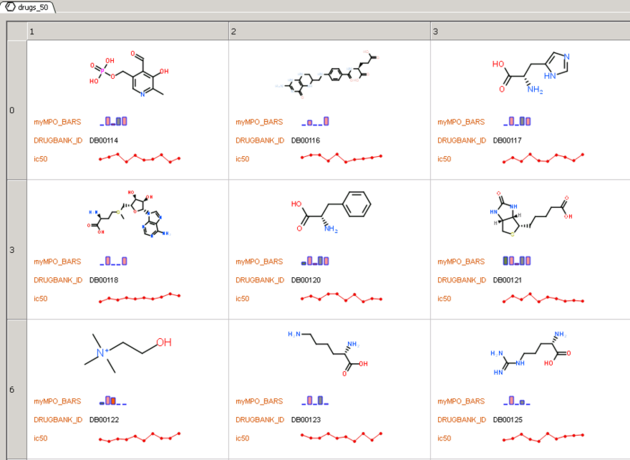
You can also embed line plots into the grid view. Just select the columns containing the plots and click on the "Grid View" button.
| Video |
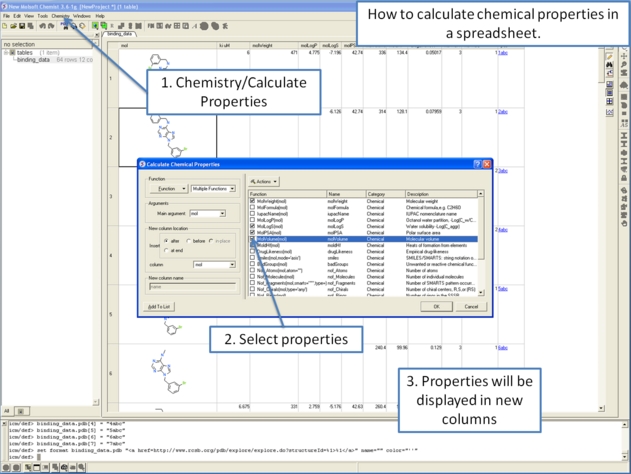
To add chemical properties (e.g. MW, LogP, PSA etc...):
For large data it is recommended to use Tools/Table/Append rows.
To add new data to a chemical spreadsheet:
To highlight new data added to chemical spreadsheet.
- Use Tools/Table/Append rows.
- Choose the option to Select New Rows.
- Mark the selected rows.
| NOTE: You can also use the filter slide bars in the table tools panel. | Video | |
To convert a column containing an InChi key to 2D structure or vice-versa 2D structure to InChi key:
- Right click on a column and select Insert Column
- Choose Function -> Chemical -> Select 2DfromInChi or Inchi
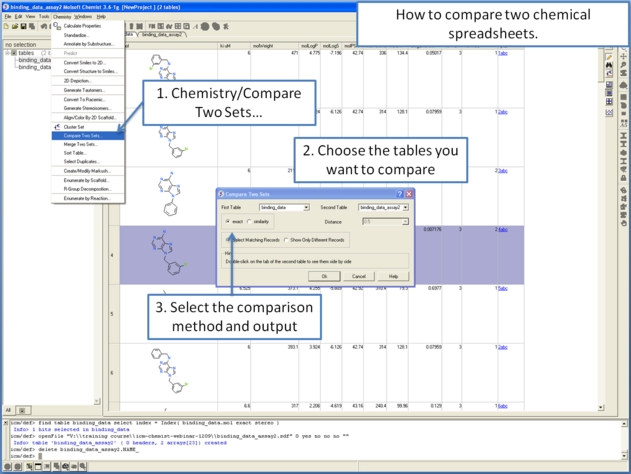
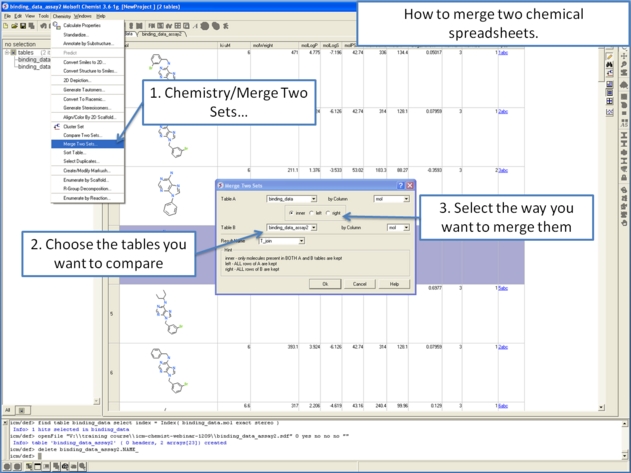
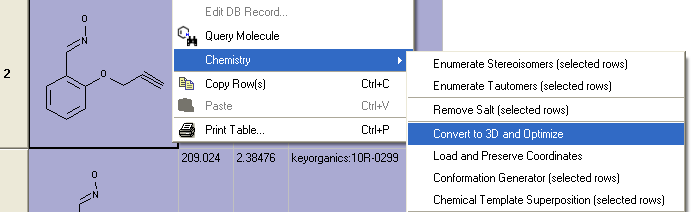
To display and convert a molecule from a molecular table in the 3D graphics display window:
- Select the molecule image or images in the molecular table.
- Right click and select the Chemistry/ Convert to 3D option.
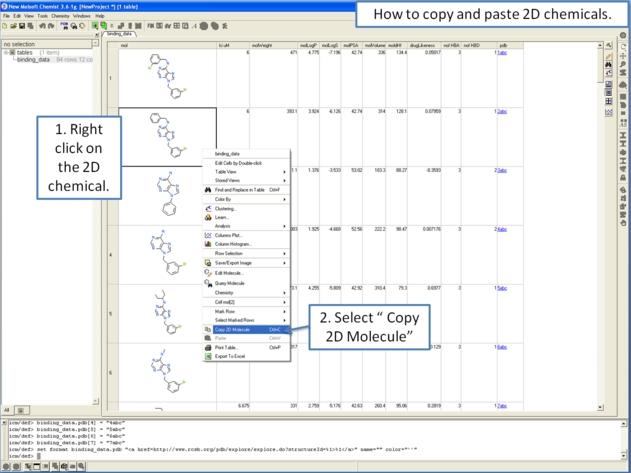
To copy a molecule to paste into another application or into the ICM Molecular Editor:
- Right click on the molecule and a menu will be displayed.
- Select the option "Copy Molecule"
To copy a molecule or image to paste into another row within an ICM table or into the ICM Molecular editor:
- Right click on the molecule and a menu will be displayed.
- Select the option "Copy Molecule"
- Right click in the cell into which you wish to paste the molecule.
- Select the option "Paste Molecule"
| NOTE: To learn how to insert a row read the insert row section. |
Molecules drawn in ICM can be cut and pasted into ISIS-Draw and molecules from ISIS-Draw can be cut and pasted into ICM.
To perform thes functions the correct settings need to be turned on in ISIS-Draw so that the compound drawing is saved in the clipboard.
IN ISIS-DRAW - Go to Options/Settings/General/Copy Mol Rxn file to the clipboard.
Compounds drawn in ISIS Draw can be cut and pasted into the ICM Molecular Editor and into ICM tables. Compounds can be copied in ICM by:
- Right click on the compound in the chemical table and select Copy Molecule.
To edit a molecule:
- Right click on the molecule and a menu will be displayed.
- Select the option Edit Molecule and the ICM Molecular Editor will be displayed.
- Edit the molecule.
- Click Exit in the ICM molecular editor.
You can color your table based on values within a column by: You can also color the compound according to specific values see Color Chemical Structure.
- Selecting the column.
- Right click on the column header and a menu will be displayed.
- Select the option "Color By"
| NOTE: You can remove the color from the table by right clicking on the column header selecting Clear Selection Color. |
Links to other coloring options:
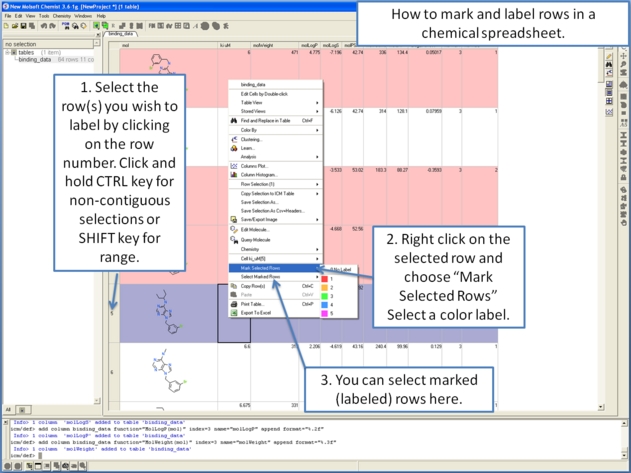
- Rows can be colored by marking them as described here.
- A 2D chemical sketch can be colored according to specific values (e.g. pharmacophore features) see Color Chemical Structure.
Different chemical view options in the ICM molecular table can be set.
- Right click on the "mol" column header.
- Select Chemical view options... and the following data entry box will be displayed
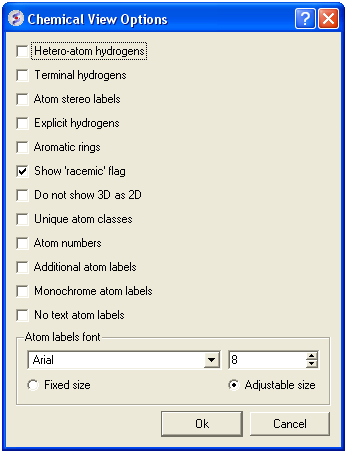
Options can be changed by checking the appropriate boxes or by entering the desired font and size.
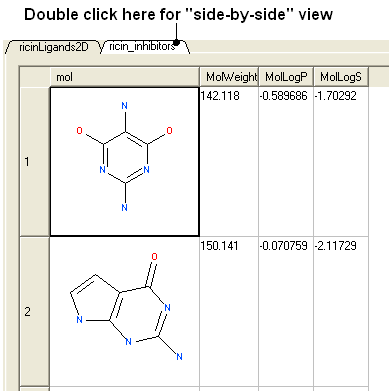
Chemical tables can be visually compared by placing them side-by-side. This can be done by:
- Double click on the table header for side-by-side view.
- Double click on the table header again to remove side-by-side view.
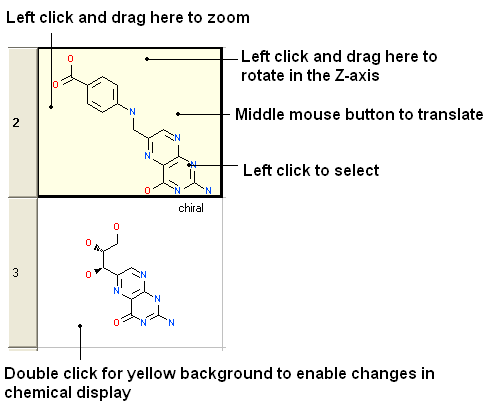
Sometimes you may want to get a better view of a chemical in a an ICM molecular table you can do this inside the chemical table by:
- Double clicking on the chemical drawing and the background will turn yellow.
| NOTE: You can also browse your structures in 3D. See section entitled "Set Chemical Table 3D Browse Mode". |
To browse the chemicals contained within a Chemical Spreadsheet in the graphical display:
- Right click on the "mol" column header.
- Select the option "Set 3D Browse Mode".
- Use the box in the column "L" to toggle the 3D display on and off.
- Multiple chemicals can be displayed by selecting the rows and then checking the box.
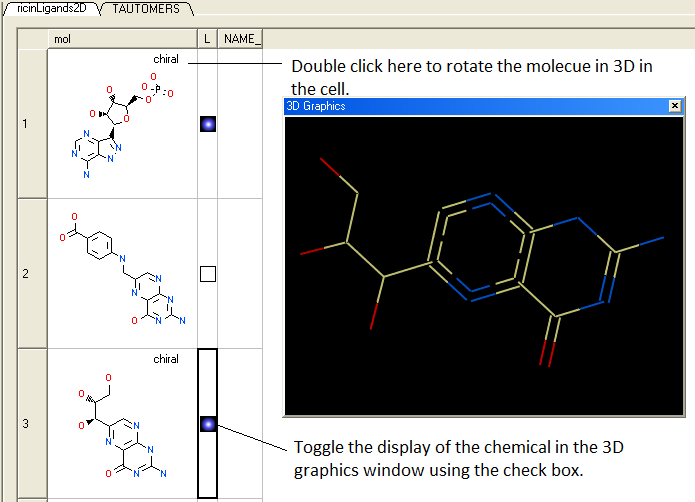
To remove 3D browse:
- Right click on the "mol" column header.
- Select UnSet 3D Browse Mode.
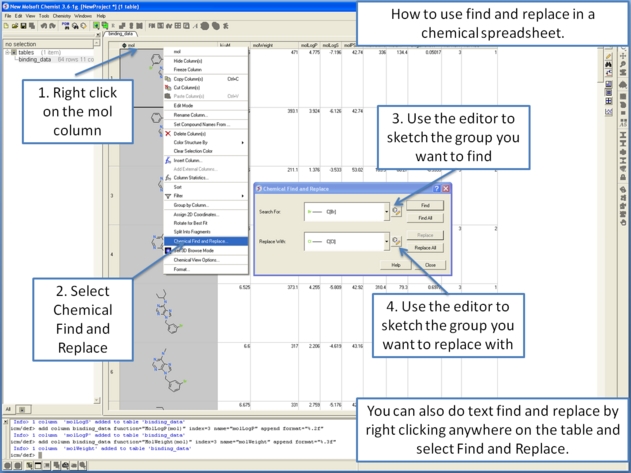
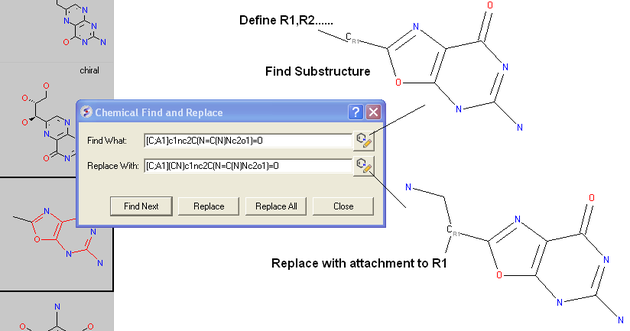
Chemical Find&Replace tool allows you to find an arbitrary chemical fragment with one or more attachment point(s) and replace it with another fragment with the same number of attachment points.
To find a substructure and replace it with something else:
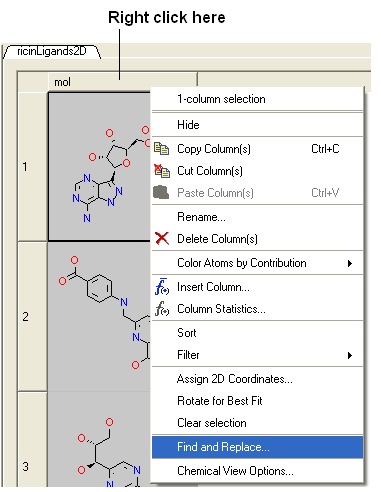
- Select the column in which the molecular structures are displayed. The column is usually called "mol".
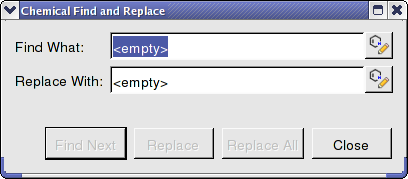
- Right click on the "mol" column header and select Find and Replace. A data entry box as shown below will be displayed.
- Click on the Molecular Editor button at the end of the Find What: data entry box.
- The ICM Molecular Editor will be displayed. Draw the substructure you wish to search for and replaced.
- Draw the pattern and mark attachment points with R1,R2.... R-groups can be added by right clicking at the attachment point and selecting the R-group from the drop down options.
- Close the ICM Molecular Editor and the string will be displayed.
- Repeat with the "Replace With:" data entry box. Make sure the same number of R1,R2... labels are drawn.
- Click the Find Next button and then Replace or Replace All. When a substructure to replace is identified it will be colored red.
| NOTE: There are a number of keyboard shortcuts which can be used to draw chemicals. Also please note that an aromatic bond in the source molecule will not match a double bond in the replacement pattern. |
Here is an example:
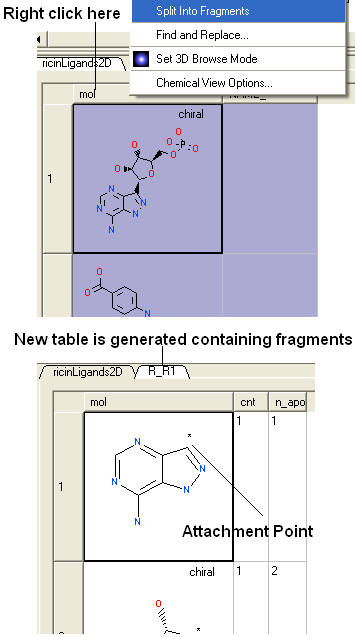
Chemicals displayed in an ICM Molecular Table can be split into fragments. This is useful for generating a series of R-groups to be added to a scaffold (See section describing reactions.
To generate fragments:
- Select the column or row(s) you wish to generate the fragment from.
- Right click on the "mol" column header and select "Split Into Fragments".
- A new table of chemical fragments will be displayed. Each fragment is assigned an attachment point which is flagged with an asterisk (*).
To improve the display of a chemical within an ICM molecular table you can choose an option called "Rotate for best fit".
This option can be found by:
- Right click on the "mol" column header.
- Select "Rotate for Best Fit"
To color the structure of a chemical in an ICM molecular table by fragment of pharmacophore frequency:
- Right click on the "mol" column header.
- Select Color Structure By
- Select "By Fragment Frequency" or "By Pharmacophore Features"
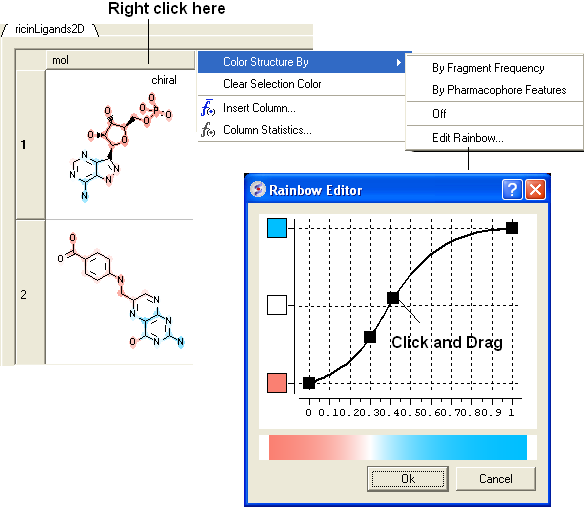
| NOTE: The coloring can be controlled using the "Edit Rainbow" option and the coloring can be removed using the "Off" option |