Sep 2 2010 Feedback.
Contents
 
Introduction
How To Guide
Getting Started
 How To Display
 Selections
 Sequences and Alignments
 Protein Structure
 Menu Option Guide
 Tab Guide
  Display Tab
  Light Tab
  Labels Tab
  PDB Search Tab
  Meshes Tab
  Movie Tab
Molecular Graphics
Slides and Documents
ActiveICM
Movie Making
Sequences & Alignments
Protein Structure Analysis
Protein Superposition
Crystallographic Analysis
Homology & Modeling
3D Predict
Molecular Mechanics
Cheminformatics
Chemsitry Menu
Docking
Ligand Editor
Tables
Local Databases
FAQs
Tutorials
 
Index
PrevICM User's Guide
3.6 Tab Guide
Next

[ Display Tab | Light Tab | Labels Tab | PDB Search Tab | Meshes Tab | Movie Tab ]

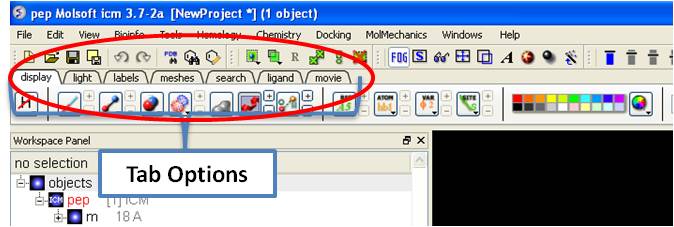
In this section we describe the contents of the tabs in the graphical user interface.
3.6.1 Display Tab


[ Hydrogens | Formal Charges | Structure Representation | Wire | Stick/Ball | Ribbon | Skin | CPK | Surface | H-Bond | Coloring | Color/BG | Background | Labeling | Atoms | Residues | Move | Variables | Sites | Annotation | Color | Distance Atoms | Planar Angle | Dihedral Angle | Delete Label | Display Gradient | Tethers | Dist/Restraints | Superimpose | Display Clash | Toggle ]

The display tab contains tools for a variety of functions including - structural representations, coloring, labeling and superposition. This tab is shown below.

3.6.1.1 Display and Undisplay Hydrogens


To display and undisplay hydrogens. Click and hold on the "Change Hydrogen Display" button shown below. Multiple single clicks will toggle through the hyrogen display options.

  • Display Tab
  • Click and hold on the "Change Hydrogen Display" button shown below.

3.6.1.2 Display Formal Charges


You can display formal charges by clicking and holding on the "Change Hydrogen Display" button in the Display tab.

3.6.1.3 Structure Representation


There are six main types of structural representation in ICM. They are wire, ball and stick (Xstick), ribbon, skin, CPK and dot envelope (surface).

To display one of these representations:

  • Click on the representation button you desire in the display tab.

To remove a displayed representation or to toggle between display and undisplay:

  • Click on the corresponding representation button in the display tab.

NOTE: The button display will change appearance (shaded) when pressed. This makes it easier to identify which representations are currently being displayed. Many characteristics of the graphical representation such as color can be changed by clicking and holding on the button or by cliking the plus(+) and minus(-) buttons next to them.

Some examples of the recepresentations you can choose:

Wire : Thin Wire : Normal Wire : Thick
Wire : Chemistry Wire : Tree Xstick- Thin
Xstick : Thick Xstick : Stick / Ball Ribbon : Ribbon
Ribbon : Segment Ribbon : Protein Worm Ribbon : Transparent
CPK : Default Skin : Default Skin : Transparent
Surface : Tight Surface : Normal Surface - Sparse

3.6.1.4 Wire Representation


Click and hold on the wire representation button. A menu will be displayed as shown below.

To change the wire style:

  • Click and hold on the wire representation button and then click on wire, chemistry or tree.

To change the size of the wire representation:

  • Click and hold on the wire representation button and then click on thin, normal or thick.

NOTE: Clicking on the +/- next to the wire representation button also changes the thickness of the wire representation.

To undisplay representations other than wire:

  • Click and hold on the wire representation button and then click on undisplay other representations.

If you make a mistake or you are not happy with the way your structure is displayed with the wire representation:

  • Click and hold on the wire representation button and then click on reset to default.

3.6.1.5 Stick and Ball (Xstick) Representation


Click and hold on the stick and ball representation button. A menu will be displayed as shown below.

To change the style of the Xstick representation:

  • Click and hold on the stick and ball representation button and then click on style. Choose a style as shown below.

To change the size of the Xstick representation:

  • Click and hold on the stick and ball representation button and then click on set thickness , set ball/stick ratio, set hydrogen ratio, and set backbone ration.

NOTE: Clicking on the +/- next to the xstick representation button also changes the thickness of the xstick representation.

In order to make some parts of your picture clearer, the xstick representation can be set to transparent:

  • Click and hold on the stick and ball representation button and then click on transparent.

To undisplay representations other than xstick:

  • Click and hold on the stick and ball representation button and then click on undisplay other representations.

If you make a mistake or you are not happy with the way your structure is displayed with the xstick representation:

  • Click and hold on the stick and ball representation button and then click on reset to default.

3.6.1.6 Ribbon Representation


Click and hold on the ribbon representation button. A menu will be displayed as shown below.

To change the style of the Ribbon representation:

  • Click and hold on the ribbon representation button and then click on a style option.

To accurately represent the secondary structure of the molecule in ribbon representation you may wish to assign secondary structure:

  • Click and hold on the ribbon representation button and then click on assign sec. structure. New in version 3.5-2 is they smooth ribbon style.

To make some parts of your picture clearer, the ribbon representation can be set to transparent:

  • Click and hold on the ribbon representation button and then click on transparent.

To undisplay representations other than ribbon:

  • Click and hold on the ribbon representation button and then click on undisplay other representations.

If you make a mistake or you are not happy with the way your structure is displayed with the ribbon representation:

  • Click and hold on the ribbon representation button and then click on reset to default.

NOTE: Always use the ICM assign sec.** structure tool in the ribbon right click menu to get accurate secondary structure assignment. This is particularly important when studying helices which may have non-cannonical elements within them such as 3/10 or pi. To view non-cannonical helix segments use the segment option in the ribbon right click menu.

To change the display of chain breaks (dotted lines):

  • Click and hold on the ribbon represenation button.
  • Select the options Display Chain Breaks or Display Chain Break label.

The helices in rhodopsin and bacteriorhodopsin are shown below in segment representation. Non-cannonical regions are represented as breaks in the helix segment.

3.6.1.7 Skin Representation


Click and hold on the skin representation button. A menu will be displayed as shown below.

To make some parts of your picture clearer, the skin representation can be set to tight, normal or sparse:

  • Click and hold on the skin representation button and then click on either tight, normal or sparse.

To undisplay representations other than skin:

  • Click and hold on the skin representation button and then click on undisplay other representations.

If you make a mistake or you are not happy with the way your structure is displayed with the skin representation:

  • Click and hold on the skin representation button and then click on ** reset to default**.

NOTE: Sometimes due to singularity problems holes may appearwithin the skin surface. To cure this infliction select atoms nearby and right click select Advanced->RandomizeAtoms

3.6.1.8 CPK Representation


Click and hold on the CPK representation button. A menu will be displayed as shown below.

To undisplay representations other than CPK:

  • Click and hold on the CPK representation button and then click on undisplay other representations.

If you make a mistake or you are not happy with the way your structure is displayed with the cpk representation.

  • Click and hold on the CPK representation button and then click on reset to default.

3.6.1.9 Surface Representation


Click and hold on the surface representation button. A menu will be displayed as shown below.

To change the style of the surface representation:

  • Click and hold on the surface representation button and then click on tight, normal, or surface.

To undisplay representations other than surface:

  • Click and hold on the surface representation button and then click on undisplay other representations.

If you make a mistake or you are not happy with the way your structure is displayed with the surface representation:

  • Click and hold on the surface representation button and then click on reset to default.

3.6.1.10 Hydrogen Bonding


NOTE: The method by which hydrogen bonds are calculated is described here in the command line manual. The GRAPHICS.hbondMinStrength parameter determines the hbond strength threshold for hbond display. The strength value is between 0. and 2. By changing 1. to 0.2 you will see more weak hydrogen bonds.

In order to display potential hydrogen bonds in your structure:

  • Convert to an ICM Object
  • Make a selection - if you are trying to display the H-bonds between a ligand and the receptor make sure the ligand is part of the selection.
  • Click the Display Tab.
  • Click on the Toggle H-bonds icon in the display tab.

  • Click the +/- on the right of the H-Bond button to change thickness of H-bond representation.
  • Click and hold the button to change representation or use the hbondpairs option in the ICM Workspace.

What do the default coloring of the H-bond represent?

Longer and shorter H-X distances in the hydrogen bond are color-coded, from red to blue, respectively.

NOTE Dynamic hydrogen bonds can be set by clicking and holding on the H-bond toggle button in the Display tab. Hydrogen bonds will then respond to any changes made to the ligand.

3.6.1.11 Coloring


To change the color of a structural representation such as CPK, Xstick, wire or ribbon.

  • Click and hold on the structural representation buttons in the Display tab.
  • Select a color by clicking color.

OR, if you wish to color by a particular parameter such as atom type, b-factor etc...

  • Right click on the structural representation buttons in the Display tab.
  • Select ..by-> option

To change the color of the whole of your displayed structure:

  • Click on the color palate displayed on the toolbar.
  • If you are not satisfied with these colors, click on the color wheel on the toolbar. A window as shown below will be displayed. Select the desired color by either clicking on one of the basic colors or by selecting the desired color on the right hand side of the window.

  • Once the desired color has been selected it can be added to custom colors for future use by clicking on the Add to Custom Colors button.
  • Click the OK button and the color will be applied to the structure.

To change the color of the desired representation by a defined structural characteristic:

  • Click and hold on the wire representation button and then click ..by->. A menu as shown below will be displayed.

  • Select the characteristic that you wish to color by and click on it.

3.6.1.12 Coloring Background


In order to change the color of your background:

  • Select View/Color background.

  • Click on the square of your desired color. If you are not satisfied with the color palate, click on the arrow next to the colors to customize a color.

OR

  • Right click on a color in the colors panel in the display tab.

3.6.1.13 Background Image


NOTE: this functionality is only available in versions 3.6 and above.

A background image can be added to the graphical display. This can be useful for making cool images or for comparing structures (e.g.compare displayed object with background image of object).

To add a background image from an image file (png or jpeg):

  • File/Open Image
  • Right click on the image in the ICM Workspace and select "Set as Background in Graphics."

To set currently display as background image:

  • Click and hold on the "Copy Image to Clipboard" button at the bottom of the gui and select the "Set as Background" option.

To remove a background image:

  • Select the display tab and then click and hold on the color sphere button and select "Remove Background Image".

3.6.1.14 Labeling


Labeling options are contained within the Labels or Display Tab. In many cases clicking and holding a label button will allow you to view more options.

3.6.1.15 Labeling Atoms


Select the atoms you wish to label (see display structure or selection toolbar).

  • Select the display tab.
  • Click the label ATOM button.

To change the level of label detail:

  • Click and hold the label ATOM button and select the desired level of label detail, color or style.

3.6.1.16 Labeling Residues


To label residues:

To change the level of label detail:

  • Click and hold the label RES button and select the desired level of label detail or style.

3.6.1.17 Move Residue Label


To change the location of your residue label:

  • Select View/Drag res labels.
  • If your mouse has a middle mouse button, then click on handle (as shown) of the label you wish to move, and drag it to your desired area.

  • If your mouse has no middle mouse button, then click on the Translation icon on the toolbar, and click on the handle (as shown) of the label you wish to move, and drag it to your desired area.

The +/- buttons on the side of the Residue and Atom buttons will shift the label. There are also other residue label move options available when you click and hold the residue label button. These options include Shift to Sidechain Tips, Shift to Calphas, and Restore Positions

3.6.1.18 Label Variables


To label variable angles (dihedral-torsion, planar and phase angle) the molecule needs to be converted into an ICM object.

  • Convert the molecle to an ICM object.
  • Select the atoms for which you would like to display the variables (see display structure or selection toolbar).
  • Click on the toggle variable label button shown above located in the display tab.
  • Change the font size by using the +/- buttons.
  • Change the font and color by clicking and holding on the variable atom label button.

To change the variable label style click and hold the variable atom label button as shown below.

Rings of varying diameter and color are superimiposed on rotatable bonds. Green rings with large diameter are considered less constrained than rings with small green rings. Red rings are highly constrained and non-rotatable. When the Label Style/Energy option is selected the first number displayed represents the bond angle, the second the energy and the third the worst energy that could be achieved by rotating the bond.

3.6.1.19 Labeling Sites


To display and undisplay sites use the Toggle Site Label button shown below

  • Click the label SITE button.

To change the level of label detail:

  • Click and hold the label SITE button and select the desired level of label detail or style.

NOTE: To create your own site labels see the Label Annotation section.

3.6.1.20 Label Annotation


To annotate a protein structure. Select the region you wish to annotate (see Selection Toolbar).

  • Right click on the selection.
  • Select the option Annotate Selection.
  • Enter the annotation into the text box and select ok

To change the detail (such as residue number) contained within the annotation.

  • Click in the bottom left hand corner of your annotation.

To undisplay an annotation click on the site button in the Display tab.

To permanently delete an annotation.

  • Right click on the Sites box in the ICM Workspace and select delete (see below).

To change the direction the arrow is pointing or move the arrow.

  • Click on the translation button (or use the middle mouse button).
  • Click on the end of the arrow and drag to the desired position.

3.6.1.21 Changing Label Colors


To change the color of any label:

  • Click and hold down the required label button and a menu as shown below will be displayed.

  • Select color.

3.6.1.22 Display Distance Between Two Atoms - the quick way


  • Click on the Display tab
  • Click on the Distance between two atoms button shown below.
  • Click on the atoms you wish to measure.
  • Distance will be displayed in the graphical display. You can turn this on and off in the ICM Workspace panel under the heading 3D labels.

3.6.1.23 Display Planar Angle


  • Select the display tab.
  • Select three atoms.
  • Select the button shown below.

NOTE: This option is also available in the Tools/Analysis menu.

3.6.1.24 Display Dihedral Angle


  • Select the display tab.
  • Select four atoms.
  • Select the button shown below.

NOTE: This option is also available in the Tools/Analysi s menu.

3.6.1.25 Delete Label


To delete distance or angle labels

  • Select the display tab.
  • Select the delete distance or angle label button shown below.

3.6.1.26 Display Gradient


This button is located in the display tab.

This option is described in detail in the language manual http://www.molsoft.com/man/icm-commands.html#display-gradient

3.6.1.27 Displaying Tethers


Theory

A tether is a harmonic restraint pulling an atom in the current object to a static point in space. This point is represented by an atom in another object. Typically, it is used to relate the geometry of an ICM molecular object with that of, say, an X-ray structure whose geometry is considered as a target. Tethers can be imposed between atoms of an ICM-object and atoms belonging to another object, which is static and may be a non-ICM-object. You cannot create tethers in ICM-Browser, however, if the project that you have loaded contains tethers between two objects, then they can be displayed:

  • Click on the display tab (previously called advanced tab).
  • Click on the 'Toggle Tethers' button.

3.6.1.28 Displaying Distance Restraints


Theory

A distance restraint imposes a penalty function on the distance between two atoms in the same object. You cannot create distance restraints in ICM-Browser, however, if the project that you have loaded contains distance restraints, then they can be displayed:

  • Click on the display tab (previously called advanced tab).
  • Click on the 'Toggle distance restraints' button.

3.6.1.29 Superimpose


In order to calculate the root mean square deviation (RMSD) between two structures it is necesary to superimpose them. By using the superimpose button in the display tab, ICM will calculate the Ca-atom, backbone atom and heavy atom differences between the two structures. More advanced superimpose options can be found in the Tools/Superimpose menu.

To superimpose two structures which have the same number of residues and atoms:

  • First load the two structures into ICM.
  • Select which parts or all of the two structure you wish to superimpose (see selection toolbar).
  • Select the display tab (previously called Advanced tab) at the top of the GUI.
  • Select the superimpose button.

The rmsd will be displayed in the terminal window as shown below:

3.6.1.30 Display Clash


To display a clash the file needs to be an ICM Object.

  • Select the region around which you would like to identify clashes.
  • Select the display tabs and the "toggle clashes" button shown below.

3.6.1.31 Display Rainbow, Box, Ruler


To (un)display a rainbow key, box or ruler use the buttons shown below located i n the display tab.

3.6.2 Light Tab


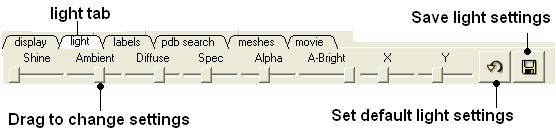
CLick and drag the sliders to change the lighting. You can also save your preferred lighting settings and return to default.

Shine - shininess property of the solid material

Ambient - ambient light intensity of RGB for ambient light

Diffuse - diffuse light intensity of RGB for diffuse light

Spec - specular light intensity of RGB for specular light

Alpha - transparency setting for grob

A-Bright - light intensity shinning on grob

X and Y - Change the position of the light source in the graphics window

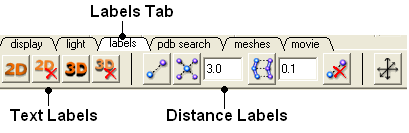
3.6.3 Labels Tab


[ Custom Labels | Undisplay Label | Displaying Distances | Origin ]

3.6.3.1 Customized Label 2D or 3D


To generate a customized a label:

  • Select the labels tab.
  • Select either 2D or 3D button.
  • Enter your label and select the desired color, font and size.

To edit or delete a label - right click on the label in the graphical display as shown below.

3.6.3.2 Undisplay Label


Undisplay Residue, Atom, and Variable Label Any label that is displayed can be undisplayed by selecting the region of the molecule related to the label and clicking on the corresponding label button in the labels tab. For example if you wish to undisplay an atom label - click the atom label button. If a label is displayed the coresponding button in the display tab will be shaded blue. When you delete the button will return to grey. 2D and 3D labels have an undisplay button (red cross on the button see customized label section).

Undisplay 2D or 3D label Click onthe undisplay label button in labels tab.

NOTE: A label can also be deleted by right clicking on the label in the graphical display and selecting delete.

3.6.3.3 Displaying Distances


Within the labels tab there are tools for calculating and displaying distances. These tools can also be found in the Tools/Analysis menu.

To display distance between two atoms:

  • Click on the labels tab (previously called advanced tab).
  • Select the atoms between which you would like to find the distance. (See selection toolbar)
  • Click on the 'Show Distances Between Two Atoms' Button
  • The distance will be displayed in angstroms, in green.

To find the distance from one atom to many:

  • Click on the labels tab (previously called advanced tab).
  • Select the atom from which you wish to measure the distance from (See selection toolbar)
  • Click on the 'Show Distances From One Atom To Many' button.
  • The distances will be displayed in green.

The maximal and minimal distances can be selected by entering values in the boxes shown here (below) in the labels tab (previously called Advanced tab).

NOTE: Distances can be displayed and undisplayed in the 3D labels section of the ICM Workspace. See image below.

To change the color of the distance label

  • Right click on the distpairs under the 3D labels section of the ICM workspace and select Change Color.

3.6.3.4 (Un)display Origin


To display and undisplay the axis of the coordinate frame (origin):

  • Select the labels tab and select the toggle origin button.

3.6.4 PDB Search Tab


[ PDB | Query | PDB Search Results Table | Patern | Sensitive | Results | Load | Pdb html | Convert ]

The PDB search tab provides easy access to the PDB database. You can use keyword searching or type in the PDB code you are interested in. An asterisk (*) wildcard can be used to list all the pdb files currently available in the protein databank. Different fields can be searched by using the drop down arrow as shown below. More advanced PDB search tools and how to use the PDB search result table are described in the section entititled Searching the PDB.

Once a search is complete a table of PDB files relating to your search query will be displayed. To view the PDB file in 3D in the graphical display double click on a row in the PDBSearchResults table.

NOTE: If you have a PDB structure already saved you can read it into ICM by going to the File Menu and selecting Open. PDB files that have been viewed previously can be loaded using File/ Recent PDB Codes.

3.6.4.1 Searching the PDB


Protein structures solved by X-ray crystallography, NMR or other experimental methods are stored in the Protein Data Bank (PDB). These structures can be easily accessed, displayed and analyzed using ICM.

There are four ways to find a structure from the PDB database and load it into ICM:

  1. Query by keyword or PDB code.
  2. Query by sequence pattern.
  3. 2Query by sensitive similarity search.
  4. Load the PDB file directly from FTP, http, local drive.

3.6.4.2 Querying PDB by Keyword or PDB Code


There are four ways of querying the PDB using ICM and keywords. OPTION 3 allows for a much more refined search.

OPTION 1:

  • Select Edit/PDB search and the "Find PDB Entries by Keyword" data entry window will be displayed.
  • Enter a keyword or PDB code into the Keywords data entry field.

NOTE: If a keyword has been entered previously it will be available by clicking on the drop-down button.

  • Click the OK button and a list of related PDB entries will be displayed in the PDBSearchResults table of the graphical userinterface.

OPTION 2:

Use the pdb search tab on the tool bar. Select which parameter you wish to search by. Enter some text and this will be searched against the PDB.

Seq Pattern- Enter a protein sequence and this option will tell you whether a protein structure exists in the PDB for that sequence.

Close Match - Enter a protein sequence and this option will tell you which sequences are similar to your entered sequence.

Homology - Enter a protein sequence and homolopgous proteins in the PDB will be displayed in a table.

Ligand Code - Enter the PDB ligand code.(e.g. 1crn)

  • Click the OK button and a list of related PDB entries will be displayed in the PDBSearchResults table of the graphical userinterface.

OPTION 3:

  • Select Edit/PDB search by field and the ** Find PDB Entries by Keywords and Fields ** data entry window will be displayed.

  • Enter your search words into the appropriate fields: Author; Compound; PDB Header; Experiment Type; Resolution Better Than
  • Click the OK button and a list of related PDB entries will be displayed in the PDBSearchResults table of the graphical userinterface.

OPTION 4:

  • Select File/Load and the PDB data entry window will be displayed.
  • Enter the PDB code and select the source of your PDB file.
  • Click the OK button and a list of related PDB entries will be displayed in the PDBSearchResults table of the graphical userinterface.

3.6.4.3 PDB Search Results Table


  • To load a pdb file double click on the search results table.
  • Sort the table by right clicking on the column header. Other table manipulation options are described in the Working with Tables chapter.

3.6.4.4 Querying PDB by Sequence Pattern


There are two ways to query the PDB by sequence pattern.

OPTION 1:

  • Select Edit/PDB Search by sequence pattern
  • Cut and paste or type your sequence into the Sequence data entry field.
  • Choose whether you wish to display All entries or Entries with unique sequence by checking the appropriate button.
  • Click the OK button.

OPTION 2:

Use the word search option on the tool bar

3.6.4.5 Sensitive PDB Similarity Searches


There are two ways to search a sequence against the PDB database.

OPTION 1:

If your sequence is already loaded into ICM:

  • Select Edit/PDB Search by sensitive similarity
  • Type the sequence name into the Sequence name field. Sequences which are already loaded into ICM can be seen by clicking the drop-down button
  • Select the number of hits you wish to see by typing the number into the Limit field. A number can also be selected by clicking on the up and down arrows. (Default is 50)
  • Select the sensitivity of your search by typing a value into the Expect field. This value is a database-size error estimate and the default value is 0.01.
  • Choose whether you wish to display All entries or Entries with unique sequence by checking the appropriate button.
  • If you wish to load the sequences leave the Load Sequences box checked.
  • If you merely want to see the PDB codes which are similar to your sequence then un-check the Load Sequences box.
  • Click the OK button.

OPTION 2:

If your PDB sequence is not loaded into ICM:

  • Select Edit/Search with external sequence
  • Cut and paste or type (shown below) your sequence into the Sequence data entry field.
  • Select the number of hits you wish to see by typing the number into the Limit field. A number can also be selected by clicking on the up and down arrows. (Default is 50)
  • Select the sensitivity of your search by typing a value into the Expect field. This value is a database-size error estimate and the default value is 0.01.
  • Choose whether you wish to display All entries or ** Entries with unique sequence ** by checking the appropriate button.
  • If you wish to load the sequences leave the Load Sequences box checked.

NOTE: If you merely want to see the PDB codes which are similar to your sequence then un-check the Load Sequences box.

  • Click the OK button.

NOTE: You can also use the toolbar search option by homology if you wish.

3.6.4.6 Working with PDB Search Results


Once you have searched for a PDB structure, a table with the search results will be displayed on the bottom of the ICM window. See the Tables section for more information on how to use ICM tables. See the next section loading your PDB file for information how to view the PDB file. More information about working with tables can be found in the Tables Section of this manual.

3.6.4.7 Loading Your PDB File


  • To load a pdb file double click on the search results table.
  • Sort the table by right clicking on the column header. Other table manipulatio n options are described in the Working with Tables chapter.

3.6.4.8 Display PDB Header


To display the PDB Header for a PDB file.

  • First load a PDB file into ICM (see Load PDB)
  • Double click on the word header in the ICM Workspace.

  • The PDB Header information will be displayed.

  • Click on the blue hyperlinked text to link to external web pages for additional information if needed.

3.6.4.9 Converting PDB Files Into ICM Objects


Sometimes it is necessary to have a PDB file in the form of a true ICM-object for which you may calculate energy, build a molecular surface and perform all operations. There are two ways of converting a PDB file into an ICM object.

OPTION 1:

  • Right click on the name of the protein, displayed in red, in the ICM workspace panel and a menu will be displayed.
  • Select ConvertPDB in the menu and the following data entry box will be displayed as shown below.

OPTION 2 a more rigorous conversion in ICM-PRO:

  • Select MolMechanics/Convert/Protein and the following data entry box will be displayed as shown below.

Six options can be selected:

  1. Delete water molecules if you are not interested in them.
  2. Optimize hydrogens if you wish but this may take time.
  3. Delete the original PDB file and replace it with the converted ICM object.
  4. Undisplay during conversion will speed up the conversion procedure.
  5. You can display the final converted object if you wish.
  6. Running the conversion in the background will speed the procedure up.

3.6.5 Meshes Tab


[ Surfaces | Meshes | Macroshape | Google 3D | Mesh options | Move/Resize | Mesh/Display | Mesh Clipping | Save Mesh | Occlusion ]

Note: Click Next (top right hand corner) to navigate through this chapter. Headings are listed on the left hand side (web version) or by clicking the Contents button on the left-hand-side of the help window in the graphical user interface.

Click on the tab button entitled 'meshes' and three different graphical display tools are available for you to use. The three displays are surface, meshes and macroshape and are collectively referred to as meshes.

The benefits and applications of each display are described in this section.

Surface: Meshes: Macroshape:

3.6.5.1 Surfaces


The surface of your structure can be displayed and colored by electrostatics or binding properties. To do this:

  • Load a structure into ICM File/Open or tab-pdb{PDB Search}
  • Convert the structure into an ICM object.
  • Select the 'meshes' tab button.

The buttons and options you need to use are shown below:

First you need to decide by what parameter you wish to color the surface:

  • Click on the drop down arrow menu shown below and select which parameter you wish to color the surface by.

  • Click the button next to the menu to color the surface of your molecule.

If you wish to have your surface displayed in wire check the 'wire' box next to the menu.

To display or undisplay the surface click in the box in the ICM workspace as shown below:

NOTE: All surfaces, meshes and macroshapes come under the one heading of meshes in the workspace panel.

3.6.5.2 Meshes and Macroshape


A variety of shapes can be constructed using ICM. These shapes are referred to as meshes. The types of shapes you can build are shown below:

All the buttons for creating these shapes are shown here:

To make a shape select it from the menu by clicking on the down arrow and then click the button next to the menu. The shape will then be displayed in the 3D graphics window.

3.6.5.3 Macroshape


A macroshape can be constructed and allows easy viewing and manipulation of the structural representation. A macroshape representation is ideal for large structures which allows the user to easily identify important regions of the structure and facilitate the return to the 'standard' view of a particular molecule. All the buttons needed to display a macroshape structure are shown below in the 'meshes' tab.

To construct a macroshape:

  • Load a molecule into ICM File/Open or tab-pdb{PDB Search}
  • Select the amount of detail required in the shape by increasing the values in 'N' or 'step' data entry box (note the default values are usually sufficient).
  • Check the 'color' if you wish your molecule to be colored.
  • Click the button labeled 'MacroShape'.

Macroshape can also be used from the View menu: View/Macro Shape

3.6.5.4 Google 3D Objects (Sketchup)


To read in a 3D Mesh from Google in KMZ or COLLADA format:

  • File/Load/ 3D Mesh in KMZ or COLLADA Format from Google
  • Search for the object you would like to view and download it.
  • To read the file go to File/Open

An example of a KMZ file can be found in the distribution (a squirrel model by ilikipie, provided with author's permission).

  • File/Open, and choose the squirrel.kmz file

3.6.5.5 Mesh Options.


A number of options relating to meshes can be used by right clicking on the mesh in the ICM Workspace. This section describes some of these options.

3.6.5.6 Move and Resize Mesh


Once a mesh has been created you can move it and resize it. To do this, locate the mesh you wish to either move or resize in the ICM Workspace and right click on it as shown below.

  • Select the Resize/Move Mode in the menu.

A purple box as shown below will surround the molecule.

To resize the mesh click on one of the corners of the box and drag to the required size. The number displayed on the edges of the box represent the dimensions.

To move the mesh click on it with the center mouse button or selct the connect option.

3.6.5.7 Color and Mesh Display


There are a number of options to color and change the display of the mesh. These options can be accessed simply by right clicking on the mesh name in the ICM Workspace as shown below.

The lighting and display can be changed by selecting the options 'Display Mode' or 'Invert Lighting'.

There are five different display modes as shown below:

To change the lighting effects select 'Invert Lighting'.

The mesh colors can be changed by using the 'Color' option in the menu.

3.6.5.8 Mesh Clipping


Clipping tools can be used to adjust the frames of the mesh independently of other objects.

The buttons shown below can be used for this purpose.

The buttons used for clipping are described in the section entitled Clipping Tools.

3.6.5.9 Save Mesh


You can save a mesh as a wavefront object by right clicking on the mesh in the ICM Workspace and selecting SaveAs.

3.6.5.10 Occlusion Shading


The occulusion shading option provides better representation of depth within a cavity. The color of each surface element of a grob (mesh) is changed by mixing its own color with the background depending on the burial of the surface element

To add occlusion shading:

  • Right click on the mesh in the ICM Workspace and select Occlusion Shading.
  • Enter a depth value - default is 0.8. Higher values will generate a more dramatic shading.

3.6.6 Movie Tab


The options in this tab are described in the View Defined Movie Making section of the Movie Making Chapter.


Prev
Windows Menu
Home
Up
Next
How To Display

Copyright© 1989-2010, Molsoft,LLC - All Rights Reserved.
This document contains proprietary and confidential information of Molsoft, LLC.
The content of this document may not be disclosed to third parties, copied or duplicated in any form,
in whole or in part, without the prior written permission from Molsoft, LLC.