[ New | Stereo Bond | Right Click Options | Chemical Dictionary | Chemical Groups | Template Menu | Free Radical | Adding fragment | Property Monitor | Key chemical | Edit Options | Paste Smiles/InChi | Save as Mol/RXN | Save Chemical Spreadsheet | Save SMILES | Convert to 3D and Conformers | Edit add sequence | Isis ]
| Available in the following product(s): ICM-Chemist | ICM-Chemist-Pro | ICM-VLS |
| Video |
Draw new compounds by using the ICM Molecular Editor.
The molecular editor can be activated by:
- Clicking on the Open ICM Molecular Editor button shown below.
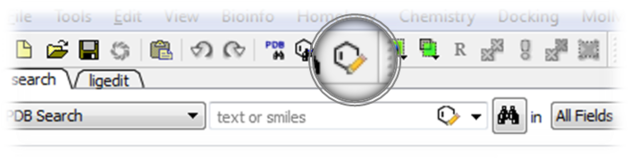
OR
- Select Chemistry/Molecular Editor and the editor as shown below will be displayed.
To draw a new chemical structure the ICM Molecular Editor should be loaded.
To do this:
- Select Chemistry/Molecular Editor
Now you can start drawing your structure.
- First select an atom, bond or ring and then click in the white Molecular Editor Workspace to start sketching.
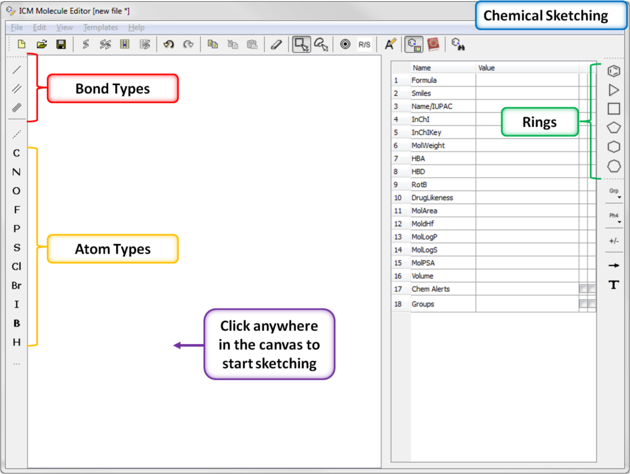
- You can extend your structure by selecting another atom, bond or ring.
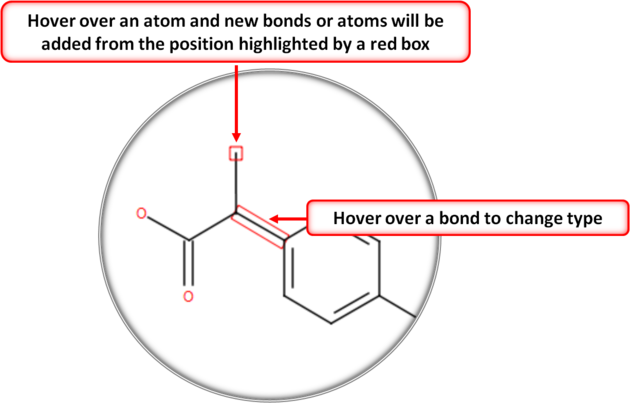
- Select where on the structure you would like to add the new group by hovering the mouse over the desired position. The position you will add to will be highlighted in a red box.
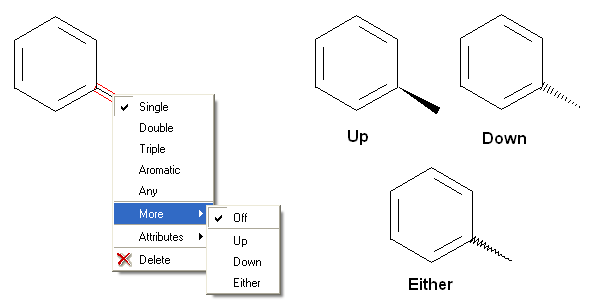
To set the stereo bond type:
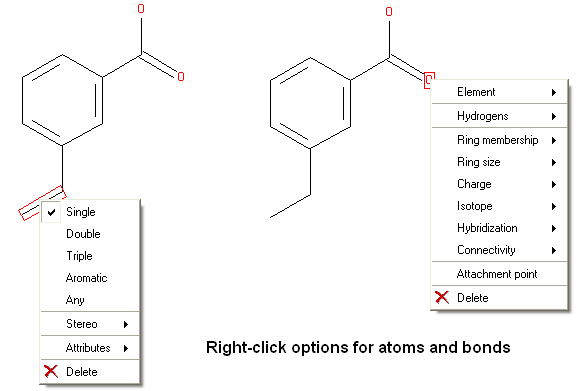
There are a number of different options available when you right click on a bond or atom. These can be used for editing bond and atom types and there are additional options for Chemical Searching.
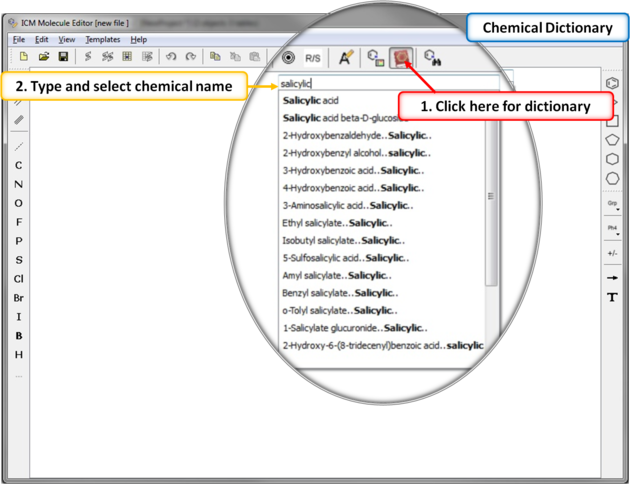
There is an inbuilt chemical dictionary which enables you to import a 2D sketch quickly. To use it:
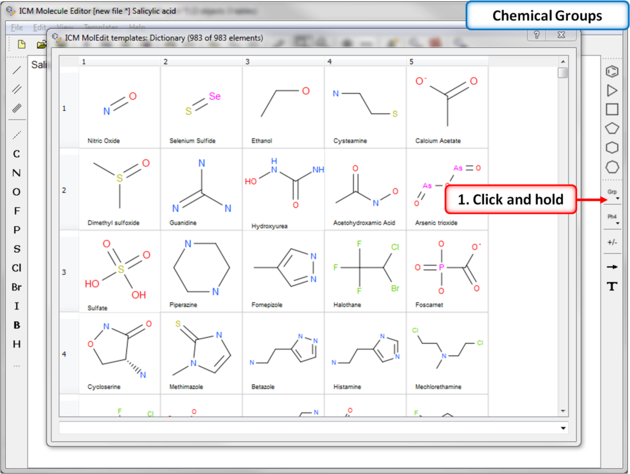
The ICM Chemical Editor has a dictionary of chemical groups. These groups are stored in a table stored in
A set of chemical templates are available for:
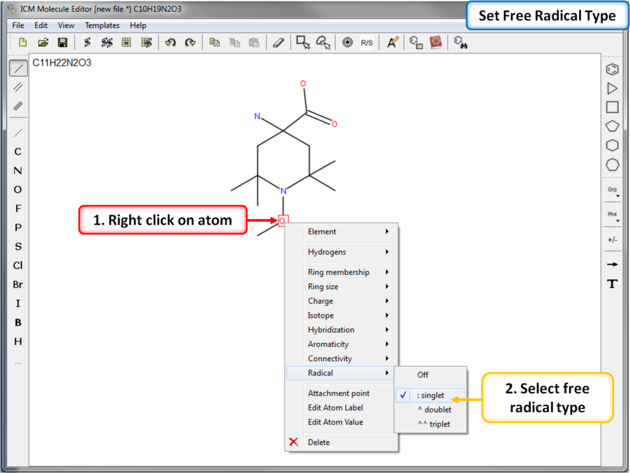
To set a free radical type (singlet, doublet or triplet) to an atom:
The Chemical Editor allows one to add bonds (click the
If you add templates (the
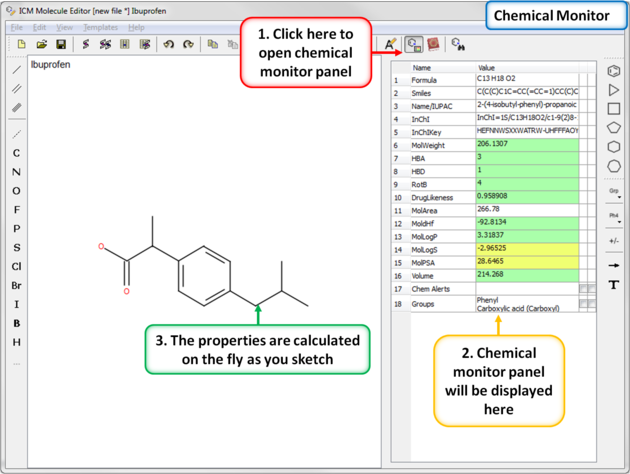
When drawing a compound in ICM you can monitor important ADME-Tox and drug-likeness properties.
To view the monitor
The following properties are monitored.
The rows in the monitor window are colored from green (good) to red (poor). You can right click on the table to copy a value or add your own prediction model.
You can select a fragment or simply position your mouse cursor over a bond or atom and use the following keystrokes
for editing:
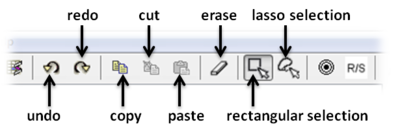
Tools are provided to help editing your chemical sketch. These include buttons for selection, erasing, copy and paste.
To paste a SMILES string into the Molecular Editor:
To save the structure as a MOL or SDF file on your machine or server:
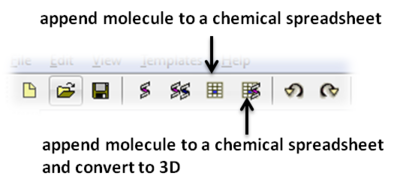
To save the chemical to a chemical spreadsheet:
To save the chemical in SMILES format
To save the chemical in InChi format
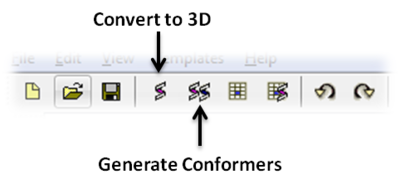
To convert the chemical to 3D or to generate conformers:
Molecules drawn in ICM can be cut and pasted into ISIS-Draw and vice-versa molecules from ISIS-Draw can be cut and pasted
into ICM.
To perform these functions the correct settings need to be turned on in ISIS-Draw so that the compound drawing is saved in the clipboard.
IN ISIS-DRAW - Go to Options/Settings/General/Copy Mol Rxn file to the clipboard.
Compounds drawn in ISIS Draw can be cut and pasted into the ICM Molecular Editor and into ICM tables. Compounds can be copied in ICM by:
CHEM_GROUPS.csv file.
This file can be manually edited to remove or add new definitions. The group can be selected using the Grp button
of the Editor.
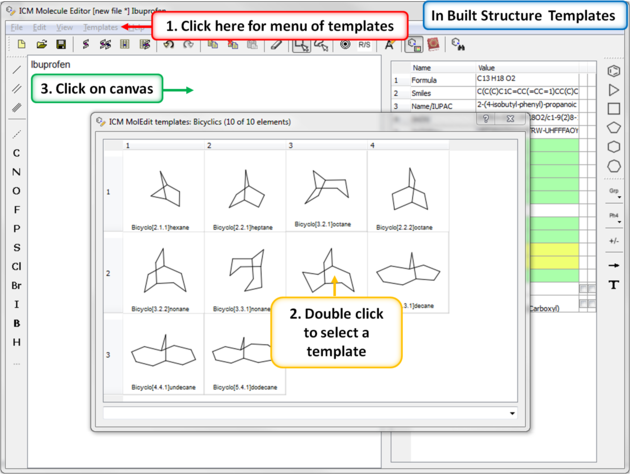
bond button), or chemical groups (the Grp button),
Often one needs to re-orient the added bond or fragment.
In this case press on the atom to which you are going to append the bond or the fragment and hold-and-drag the mouse
it until you see added fragment rotating around the attachment point.
While you keep the mouse button pressed you can rotate by dragging in the preferred direction.
Templates menu, or paste fragments, the mechanism is somewhat different because
the group is added in its default orientation. In this case you can press Ctrl to rotate the fragment to
to be able to attach the fragment in the desired orientation.
d set/unset heavy atom connectivity as drawn to avoid additional branches in chemical searches. Toggle.
r set/unset the "in-ring" property of atoms. Toggle.
y set/unset atom hybridization type ( sp1,sp2,sp3 ). Toggle.
A set atomic property to be aliphatic
a set atomic property to be aromatic
* (asterisk) set atomic property to be any atom
C Carbon
H Hydrogen
N Nitrogen
O Oxygen
F Fluorine
P Phosphorus
S Sulfur
I Iodine
1,- (dash) single bond.2,= (equal) double bond.3,# (hash) triple bond.4,: (column) aromatic bond.0,~ (tilde) any bondPress 1 to mark an atom as R1
Press Ctrl-1 to preserve its type and create [C;R1]
Press Ctrl-0 to remove the mark.