The Graphical User Interface (GUI) has many components. When you first use the GUI the default window layout is displayed as shown below.
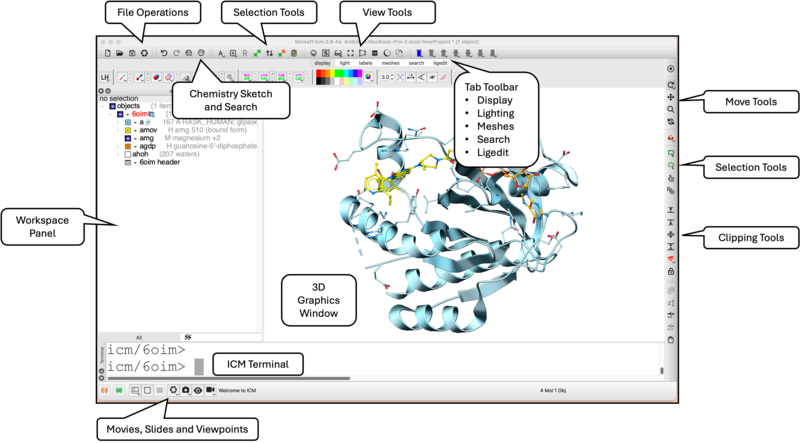
1. Main Display
- 3D Graphics Window: The central canvas where all molecular structures, electron density maps, electrostatic surfaces, and binding pockets are rendered in real time.
- Workspace Panel: Located on the left, this hierarchical tree window organizes all currently loaded data objects. It displays structures (e.g., the converted PDB object 6oim), chains, ligands, individual residues, and satellite data like alignment tables or chemical spreadsheets.
- ICM Terminal: Positioned at the bottom, this console allows power users to execute direct ICM terminal commands (indicated by the icm/> prompt) alongside GUI operations, offering a hybrid command-line/graphical workflow.
2. Top Navigation & Contextual Toolbars
- File Operations & View Tools: Top-left icons provide rapid access to opening, saving, and exporting files, while the adjacent view tools quickly modify structural representation modes (e.g., ribbon, stick, wireframe).
- Selection Tools (Top Ribbon): Global actions used to toggle atom, residue, or molecule selection states across the active layout.
- Chemistry Sketch and Search: Launches the built-in 2D molecular editor to draw chemical structures or initiate chemical searches.
- Tab Toolbar: A dynamic row of multi-purpose tabs that dramatically alter the tool ribbon options below them:
- Display / Lighting: Adjust molecular aesthetics, coloring schemes, shadows, and background modes.
- Meshes: Build and display molecular surfaces, skin models, or electrostatic potential maps.
- Search: Interface with, structure, chemical and sequence databases.
- Ligedit: Opens the interactive 3D Ligand Editor suite forlead optimization.
3. Right Vertical Action Panel
- Move Tools: Toggle the mouse behavior for translation/rotation.
- Selection Tools (Sidebar): Graphic-based picking utilities (such as lasso or point-and-click selection) specifically mapped to the 3D Graphics Window.
- Clipping Tools: Adjust front and back Z-clipping planes, allowing you to slice through dense proteins to inspect deep, occluded binding cavities.
4. Animation and Presentation Utilities
- Movies, Slides and Viewpoints: Found along the lower border of the interface, this utility enables the recording of smooth structural animations, the management of pre-saved views, and the generation of presentation-ready slides.