[ Arrange Windows ]
Is your graphical user interface looking a bit messy? Do you have tables, alignments, plots all over the place? Here we show you how to arrange everything to make a clearer GUI environment.
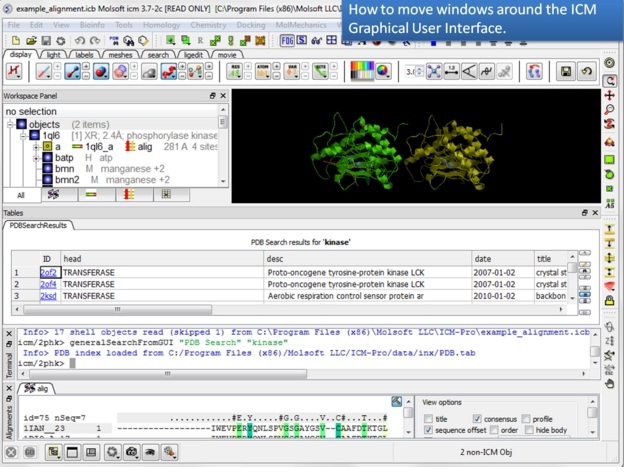 |
| 1. Too many windows in your GUI? You can move them around to make viewing easier. |
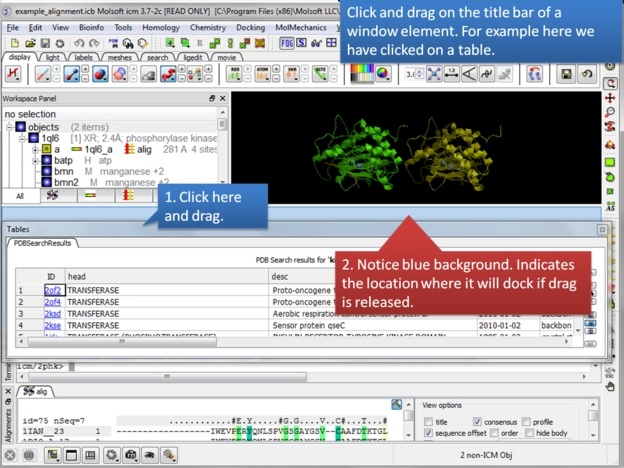 |
| 2. Click and drag on a window title bar to move it. |
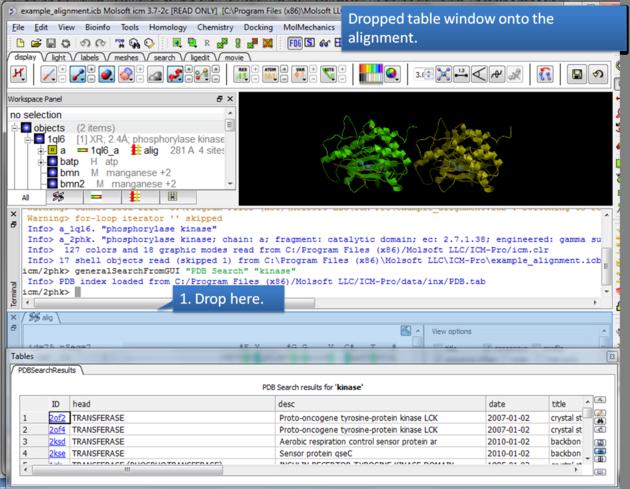 |
| 3. Drop one window on another one to dock it. |
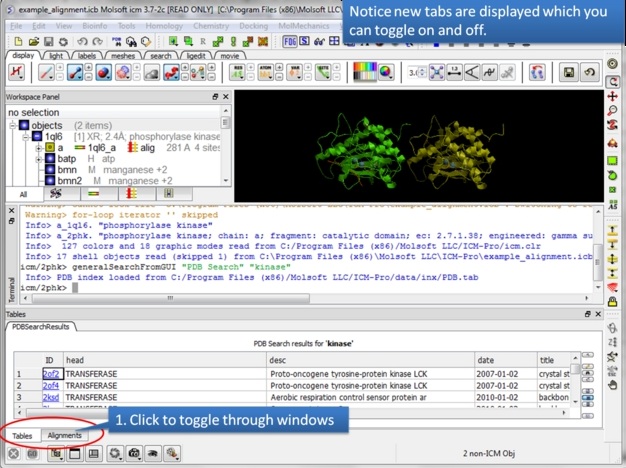 |
| 4. You can access each window by clicking on the tabs. |
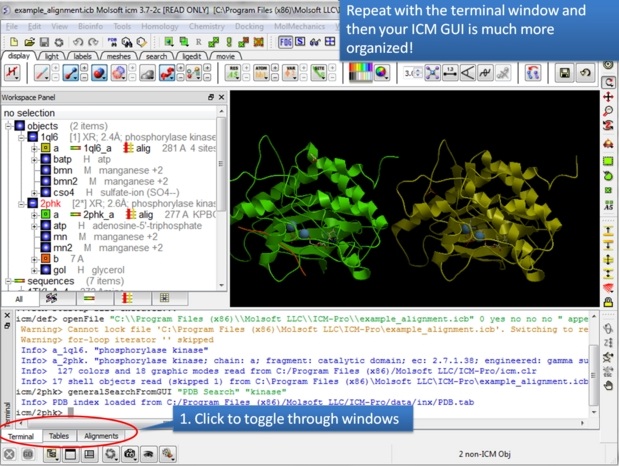 |
| 5. In this example we have the table, alignment, and terminal all in the same panel |
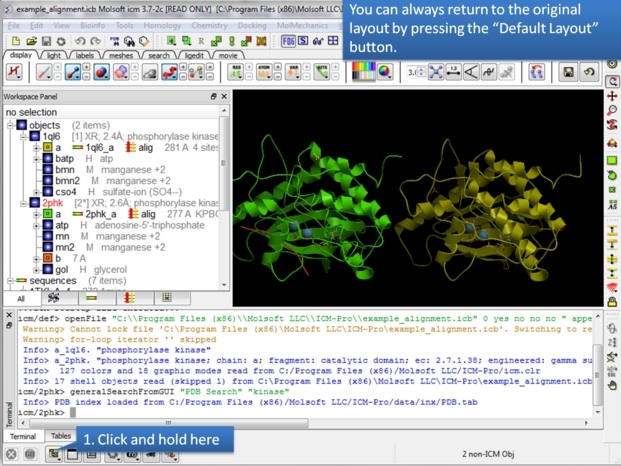 |
| 6. There is a quick way to return the windows to their original location. |
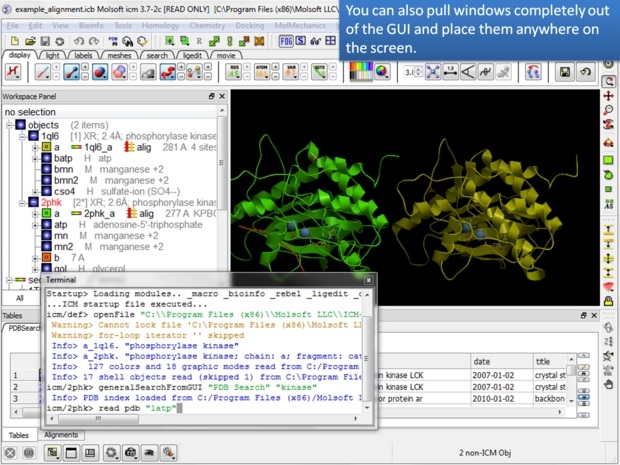 |
| 7. You can also move a window to any part of your screen. |
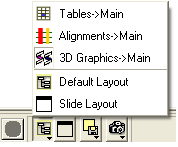
| NOTE: To return to the default display option select the 'Default layout' option in the windows menu. |
OR
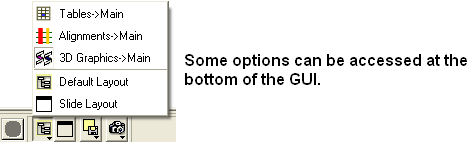
Click the default layout icon.
OR
Double click on the window header.
Sometimes when using ICM you may have many items displayed such as structures, alignments and tables. As a default the graphical display is the largest and centered in the middle of the ICM graphical user interface. However if you wish to work on an alignment or table you can place the alignment or table as the main display by clicking on the buttons shown below. The larger display generally makes it easier to manipulate the alignment or table. There are of course other ways to alter the layout such as tier the windows but this option is just a simple click and can sometimes come in useful.