[ Load PDB | Chemical Substructure | Query Sequence | PDB Field | Load NMR | Hyperlinks to Databases | Header ]
There are three main ways to read in a PDB file.
- Using the command line.
- Using File/Open button
- Using the PDB Search tab
Other PDB search options are described in more detail in the PDB Search section of this manual.
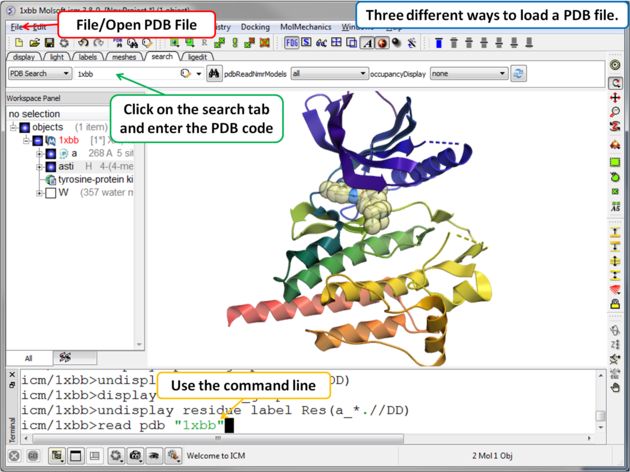
There are three main ways to read in a PDB file.
- Using File/Open button
- Using the PDB Search tab
- Using the command line.
How to Search the Protein Databank and Download
The PDB search tab provides easy access to the PDB database. You can use keyword searching or type in the PDB code you are interested in. An asterisk (*) wildcard can be used to list all the pdb files currently available in the protein databank. Different fields can be searched by using the drop down arrow as shown below. More advanced PDB search tools and how to use the PDB search result table are described in the section entitled Searching the PDB.Once a search is complete a table of PDB files relating to your search query will be displayed. To view the PDB file in 3D in the graphical display double click on a row in the PDBSearchResults table.
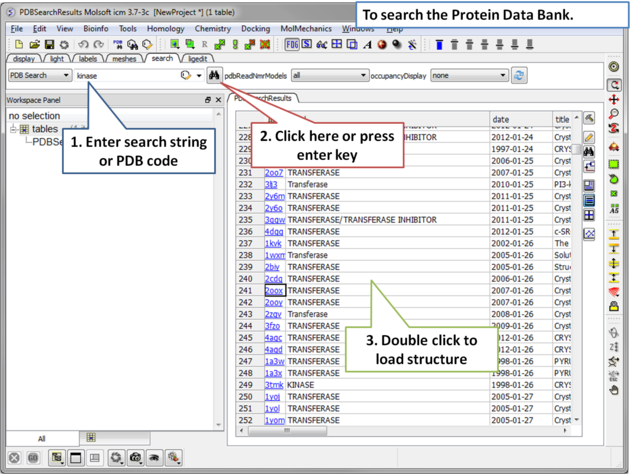 |
To Search the PDB and Download a Structure:
|
| NOTE: If you have a PDB structure already saved you can read it into ICM by going to the File Menu and selecting Open. PDB files that have been viewed previously can be loaded using File/ Recent PDB Codes. |
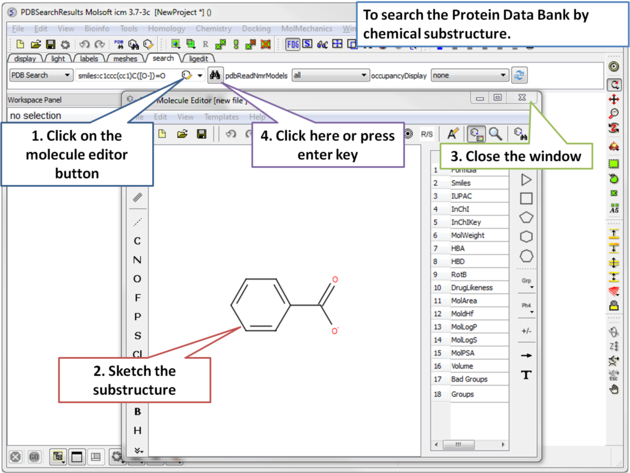 |
| Step 1: Click on the molecule editor button inside the search tab. Sketch the substructure you are interested in. |
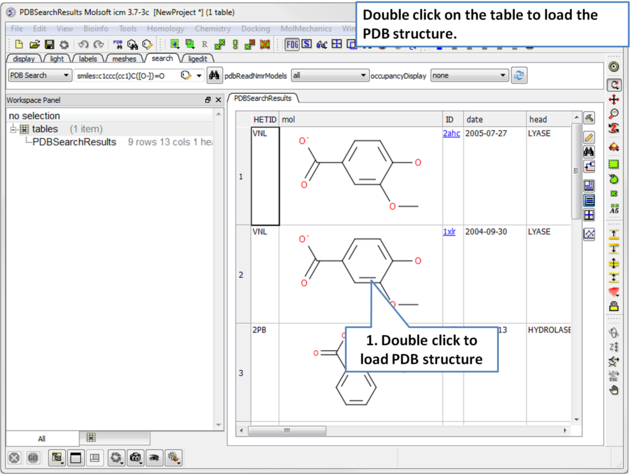 |
| Step 2: A table containing the results will be displayed. Double click on a row to load the PDB file. |
There are a number of ways to search the PDB by sequences.
- BLAST search the NCBI datase using the option "Sequences from PDB".
- Search by Sequence Pattern using the option in the Edit menu.
- Search by Identity using the option in the Edit menu.
- Search by Homology using the option in the Edit menu.
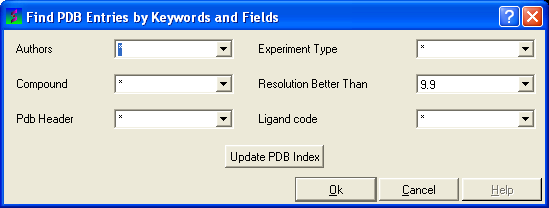
To query the PDB by field (Author, Compound, PDB Header, Experiment Type, Resolution or Ligand Code
- Select Edit/PDB search by field.
- Enter the search string or value
- Click OK and a list of related PDB entries based on your search will be displayed in the PDBSearchResults table of the graphical user interface.
Use the PDB Search tab to load NMR structures from the PDB. You can use the drop down button shown below to determine how you want to display your NMR structure. You can choose to display and download the first NMR model, all models in the PDB file or all models in the PDB in a stack. If you choose the stack option the the stack will be stored in the object as described here.

In the PDB Search Results Table you will see blue hyperlinks that will take you directly to the PDB website or Uniprot website.
To display the PDB Header for a PDB file.
- First load a PDB file into ICM (see Search PDB)
- Double click on the word header in the ICM Workspace.
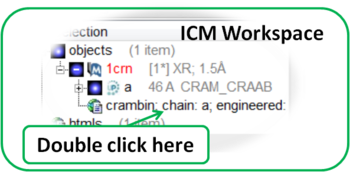
- The PDB Header information will be displayed.
- Click on the blue hyperlinked text to link to external web pages for additional information if needed.