Available buttons and options for moving molecules around the graphical display window. This is described in more detail in the section entitled Move Buttons.
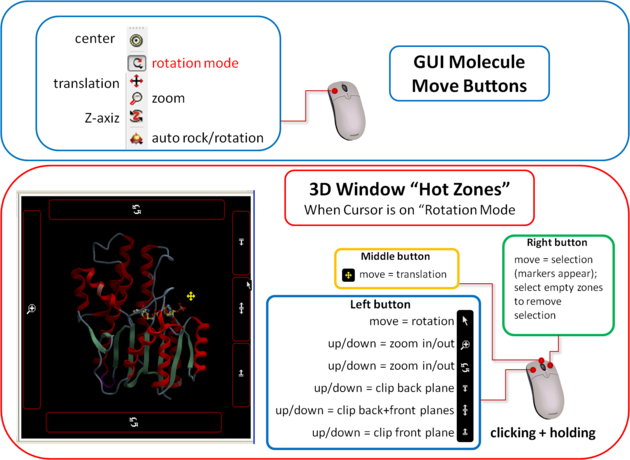
How to use the Graphics window controls
In the graphics window you can use various tools described elsewhere but it is helpful to know the following things:
- Picking a tool: the left mouse button will function according to the selected tool
- Popup menus: right click on an atom gives a pop-up menu
- Selecting in the rotation mode: the right mouse button will select atoms
- Translating in the rotation mode: the middle mouse button will translate the scene
- Zooming and moving clipping planes in the rotation mode: the left, top and right margins of the graphics window are reserved for other actions, zoom, z-rotation, and clipping plains, respectively. That means that even if you are picking atoms, by pressing control you can still rotate your molecule with the left-mouse-button.
- Rotating in any non-rotation mode: if you press Control in any mouse mode, e.g. zoom, pick etc., it will temporarily switch to rotation
- Escaping from the connect and continuous movement modes: pressing Escape helps to get out of certain modes, such as Full Screen, Continuous rotation or rocking, the Connect mode.
- Global rotation in the Connected mode: pressing Shift will temporarily switch to the global rotation/translation mode.